


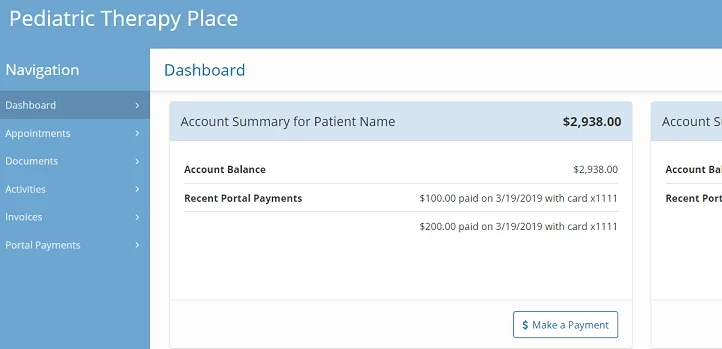
Patients, patient contacts, and other designated portal users can use the patient portal to look up information about patient services. If your clinic is enrolled in payment processing, portal users can also use the patient portal to make payments online. You can send invitations to the portal from the Contacts tab of the Patient Chart. See Working in the Patient Chart for more information.
Portal users are able to:
- View upcoming appointments
- View or print completed documents (you can hide documents by type in Clinic Options)
- View or print Home Activities they've been assigned
- Download and return intake forms
If your clinic is Enrolled in Payment Processing, portal users can also:
- Make credit card payments to your practice online
- Print receipts for online payments
- View their account balance or invoices (you can turn this off in Clinic Options)
Jump to Section:
Invite a Patient or Patient Contact to the Portal
Patients, contacts, and others who are invited to use the patient portal receive an email with a link asking them to log in and create a password. If they try to click this link once it expires after 24 hours, they can click the Forgot Password button on the portal's log in page to get a new link. Existing portal users can use the same portal user account for all patients that they have been given access to via the patient portal.
IMPORTANT: A portal invitation grants the recipient access to the patient's PHI. Only invite contacts who are authorized to view the patient's private health information.
- Open the Patient Chart. (You can use the Search Patients field in the top left corner, or by hovering over an appointment on the schedule and clicking the View Patient icon. If you are an administrator, you can also access any patient chart from the Patient List. See Working in the Patient Chart for more information.)

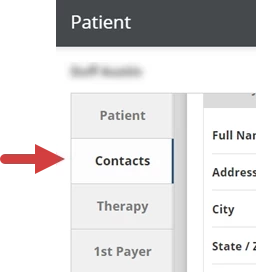
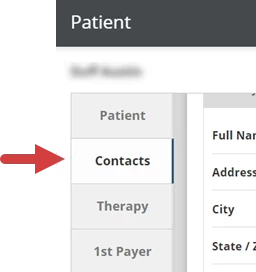
- Click the Contacts tab inside the patient chart.
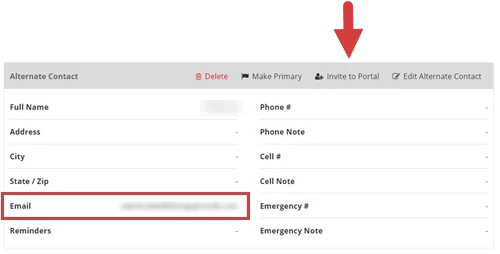
- Locate the patient or contact and confirm that the Email address is correct.
- Click the Invite to Portal
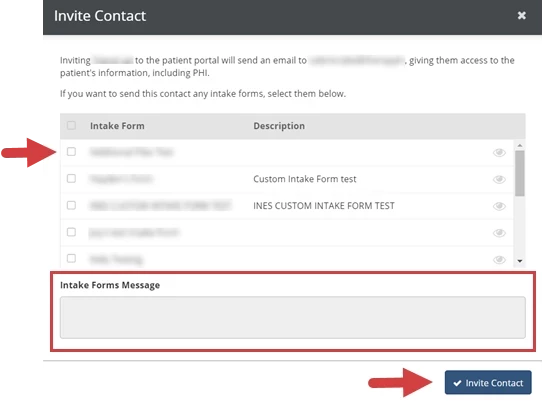
- Select the checkbox next to one or more Intake Forms and fill in the Intake Forms Message that they will see in the portal. (Sending intake forms and an intake forms message is optional.)
- Click the Invite Contact button.
Invite a Portal User that is not a Patient Contact
Patients, contacts, and others who are invited to use the patient portal receive an email with a link asking them to log in and create a password. If they try to click this link once it expires after 24 hours, they can click the Forgot Password button on the portal's log in page to get a new link. Existing portal users can use the same portal user account for all patients that they have been given access to via the patient portal.
IMPORTANT: A portal invitation grants the recipient access to the patient's PHI. Only invite contacts who are authorized to view the patient's private health information.
- Open the Patient Chart. (You can use the Search Patients field in the top left corner, or by hovering over an appointment on the schedule and clicking the View Patient icon. If you are an administrator, you can also access any patient chart from the Patient List. See Working in the Patient Chart for more information.)

- Click the Contacts tab inside the patient chart.
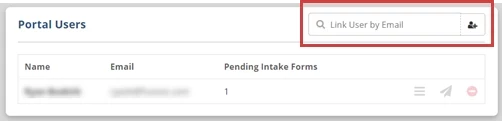
- Scroll down to the Portal Users section.
- Click the Add Portal User icon or search for an existing email in the Link User by Email field.
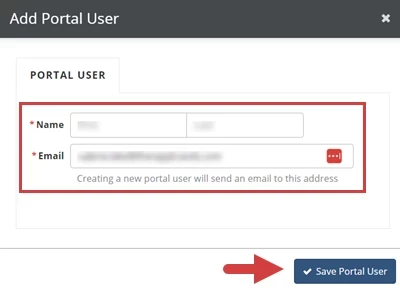
- Enter Name and Email address.
- Click the Save Portal User button.
Information for Client Portal Users
For information about accessing and using the patient portal for clients, see Use the Patient Portal.
NOTE: Clinics can contact Fusion.support@ensorahealth.com for assistance with login issues on behalf of patients, but patients can not contact Support directly.