PERMISSIONS: You need the Admin permission to manage home activities from the Admin tab.
Home Activities are exercises, therapeutic strategies, educational materials, and other resources assigned to patients and their caregivers as part of a home program. They enable occupational therapists, physical therapists, and speech-language pathologists to create, manage, and document home exercise programs within the system.
Home Activities can be linked to daily notes and included in progress notes, re-assessments, and discharge summaries, supporting continuity of care and accurate documentation. Caregivers can also access assigned Home Activity resources through the patient portal.
Administrators can manage Home Activities from the Admin tab, including the ability to add, edit, import, deactivate, reactivate, and delete activities.
NOTE: Your clinic needs the Home Education Platform (HEP) add-on to use home activities. If you're interested, reach out to Fusion Support.
Jump to Section:
Add or Edit a Home Activity
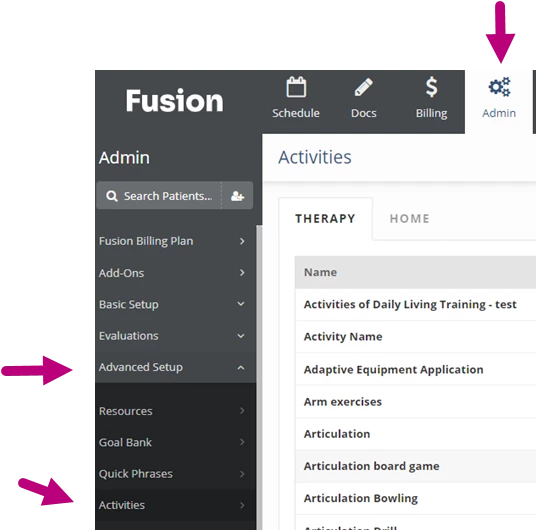
- Click the Admin tab at the top of the screen.
- Click Advanced Setup in the menu on the left.
- Click Activities.
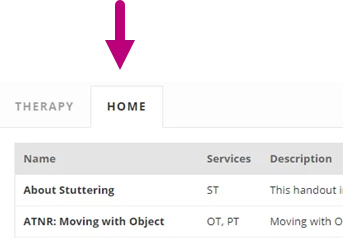
- Click the Home tab.
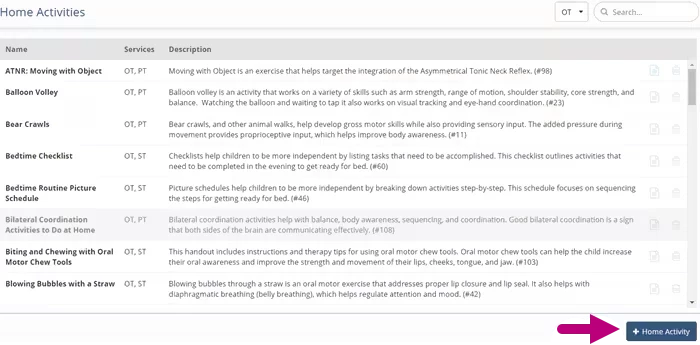
- Click the + Home Activity button to add a new activity, or click an existing activity to edit that activity
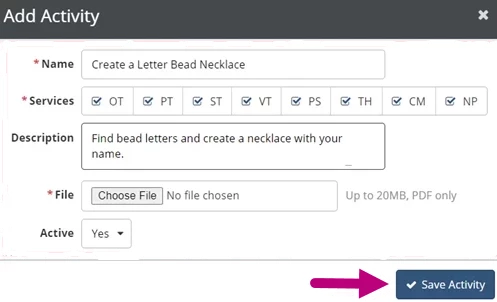
- Enter the activity Name.
NOTE: Two active activities cannot have the same name. If you want to add a new activity with the same name as an existing one, either deactivate or rename the old activity first.
- Select the Services checkboxes to indicate which services the activity is available for.
- Enter a Description (descriptions are optional and may display on progress notes, re-assessments, and discharges).
- Click Choose File to upload a PDF file of the activity document.
NOTE: It is not possible to edit the PDF file attached to an existing home activity. If you need to change the PDF file attached to a home activity, you must deactivate or delete the home activity, then create a new home activity with the new PDF.
- Select Yes in the Active dropdown to indicate that the activity is available for use in daily notes.
View or Print a Home Activity PDF
Navigate to the Activities section under the Admin tab to view or print a Home Activity PDF.
- Click the Home tab.
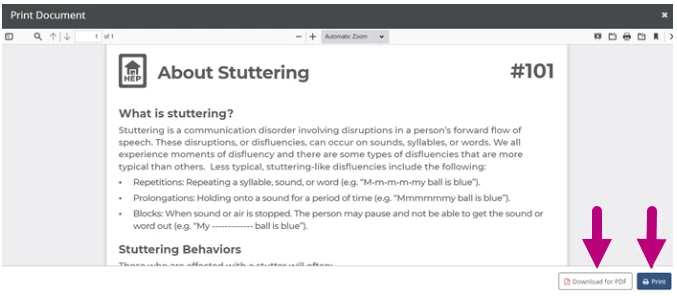
- Click the View Document icon to the right of the activity description to display the home activity PDF.

- Click the Download for PDF button to download the document, or click the Print button to print the document.
Import Home Activities
Navigate to the Activities section under the Admin tab to import the system's premade home activities for use in your clinic.
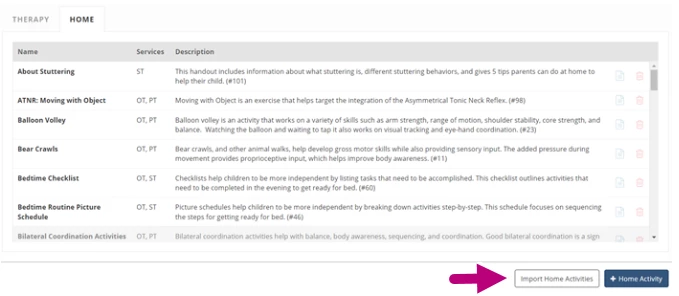
- Click the Home tab.
- Click the Import Home Activities button.
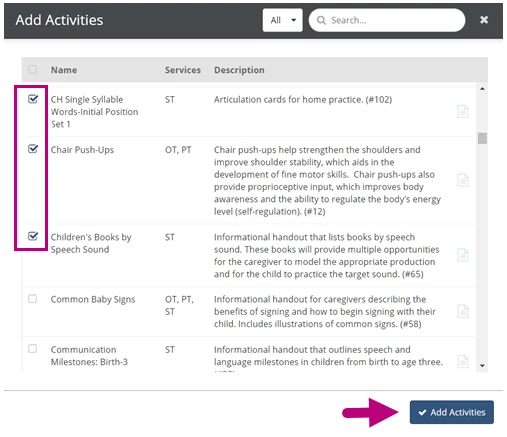
- Select the Checkbox next to one or more activity documents.
- Click the Add Activities button.
NOTE: You cannot import a home activity with the same name as an existing activity. You will need to either deactivate or rename the existing activity before importing the new home activity.
Deactivate a Home Activity
Navigate to the Activities section under the Admin tab to deactivate an active activity. Deactivated activities are not available for use in daily notes.
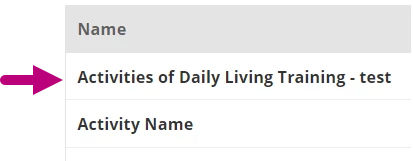
- Click the Activity you want to deactivate.
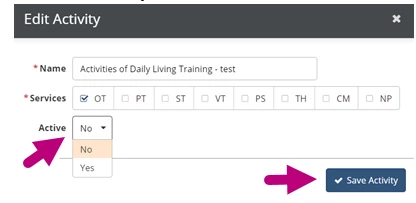
- Select No in the Active dropdown.
- Click the Save Activity button.
Reactivate a Home Activity
Navigate to the Activities section under the Admin tab to Reactivate a deactivated activity.
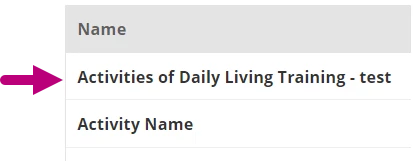
- Click the Activity you want to reactivate.
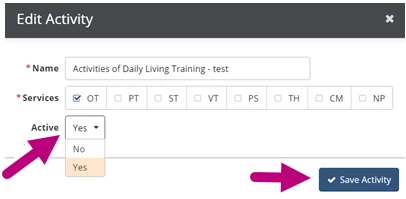
- Select Yes in the Active dropdown.
- Click the Save Activity button.
Delete a Home Activity
Navigate to the Activities section under the Admin tab to delete an activity. A home activity can only be deleted if it has not been used in any patient documents.
- Click the Delete icon to the right of the activity description.

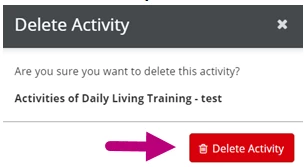
- Click the Delete Activity button.