


PERMISSIONS REQUIRED: You must be an Administrator to add and manage Roles.
A role is assigned to each user and controls what each user can do. The specific permissions given to each role determine which areas of the system a user with that role can access and what functions they can perform. You can set up your clinic's user roles in the Roles section of the Admin tab.
Jump to Section:
Add & Edit a Role
- Click the Admin tab at the top of the screen.
- Click Basic Setup in the menu on the left.
- Click Roles.
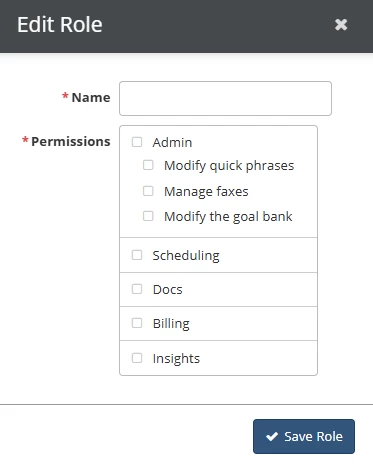
- Click the + Role button in the lower right to add a new role, or click the name of an existing role to edit that role.
- Enter a Name for the Role.
- Select Permissions for the role using the checkboxes next to the Permissions options.
- Click the Save Role button.
Delete a Role
NOTE: You can delete a role if it is not assigned to any users.
- Click the Delete icon
.
- Click the Delete Role button.
Permissions
Admin Permission
The Admin permission allows a user to access everything in the Admin tab.
IMPORTANT: Use Discretion! Users with the Admin permission have the ability to modify their own permissions, in addition to permissions for other users.
Users with the Admin permission can:
- Search for any patient.
- View and edit the information of any patient.
- View all signed documents.
- Update financial information for the clinic.
- Activate paid features.
The Admin role includes three individual permissions by default: Modify quick phrases, Manage faxes, and Modify the goal bank. If needed, you can configure these permissions separately for non-admin user groups.
- Modify quick phrases.
-
NOTE: Users with this permission will only have access to the Quick Phrases area of the Admin page.
-
- Mange faxes.
-
NOTE: Users with this permission will only have access to the Manage faxes area of the Admin page, and can only manage faxes for the locations they are assigned to.
-
- Modify the goal bank.
-
NOTE: Users with this permission will only have access to the Goal Bank area of the Admin page.
-
Scheduling Permission
The Scheduling permission allows a user to access the Schedule tab. If a user has both the Docs and Scheduling Permissions, they will only see reminders for patients in locations they are assigned to.
Users with the Schedule Permission can perform the following tasks:
- Schedule appointments for themselves and other users.
- Search for patients in locations they are assigned to.
- View and edit the information of patients they have access to.
- View all completed documents of patients they have access to.
- View reminders for patients in locations they are assigned to.
- View status updates for patients in locations they are assigned to.
Docs Permission
The Docs permission allows a user to access the Docs and Schedule tabs.
Users with the Docs Permission can perform the following tasks:
- Create documents for patients they are scheduled with.
- Add and edit goals for their service type for patients they are scheduled with.
- Search for patients they are scheduled with.
- View the information of patients they are scheduled with.
- View all signed documents of patients they are scheduled with.
- View reminders for patients they are scheduled with.
Billing Permission
The Billing permission allows a user to access the Billing and Schedule tabs. If a user has both the Docs and Billing permissions, they will only see reminders for patients in locations they are assigned to.
Users with the Billing Permission can perform the following tasks:
- Manage payer remittances, claims, and billing accounts.
- Search for any patient.
- View and edit the information of any patient.
- View Verification, Rx Expiration, and Authorization reminders for patients in locations they are assigned to.
Insights Permission
The Insights permission allows a user complete access to New Insights and Legacy Insights in the Insights tab. (Users without the Insights Permission can access New Insights reports that have been shared with them.)
Users with the Insights Permission can perform the following tasks in New Insights:
- Create new reports and charts
- View pre-built reports
- Share reports with the clinic or specific users
- View, edit, and delete all shared reports (clinic reports)