You will receive a unique Telehealth Session URL from your Therapist. If you do not have a link, contact your Therapist to retrieve the link.
You do not have to download anything to securely join a Telehealth session. You will be able to join from you phone, tablet, and computer. The Telehealth session windows are fully responsive and will adapt to the screen size of your device.
- If you haven't done so already, read Prepare for your First Telehealth Session.
- Conduct a Pre-call Test to make sure your internet is strong enough and you're using the correct device and web browser.
TIP: To ensure optimal call quality, go to https://video-diagnostics.twilio.com/ to complete a pre-call test before you begin your appointment. A pre-call test is an essential step before your telehealth session to ensure that your device and connection are ready for a smooth and uninterrupted experience. This test helps determine your internet speed, video and audio quality, and any potential issues with access or equipment, allowing you to address them before the session starts.
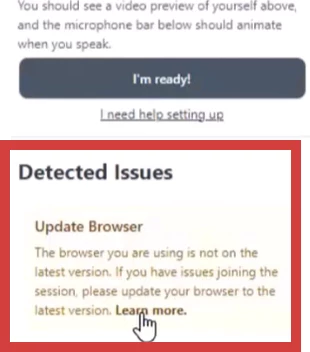
If your internet browser is out of date, you will see this message.
Jump to Section:
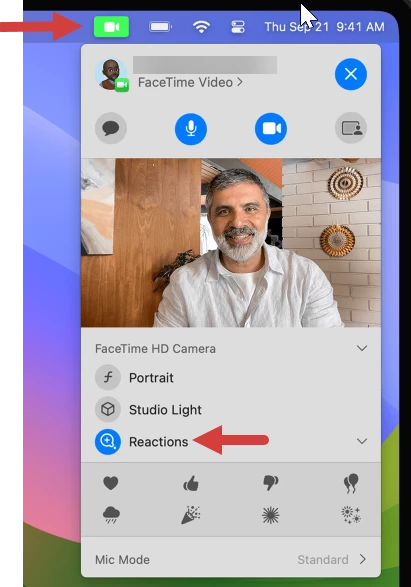
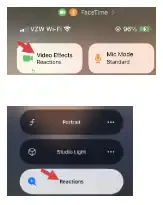
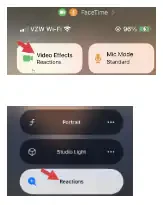
IMPORTANT: If you use Apple devices, please be aware of a feature called Reactions. It is automatically turned on after you update your device to the most recent software version. Follow the steps below to turn the feature off.
On Mac
| On iOS
|
Join from the URL via Appointment Reminder, Email, or Text
Your Provider may send you the Telehealth Session Link via email, text, or Appointment Reminder. Click on the URL, or copy and paste the URL you receive from your Provider into an internet browser window.
Join via Client Portal
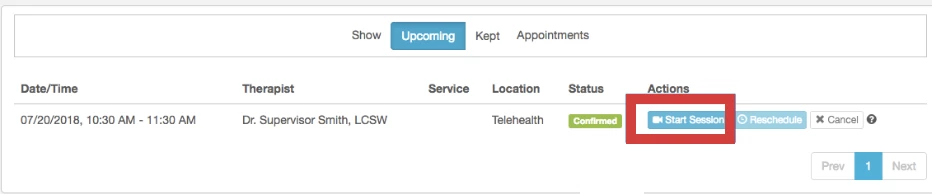
If your Provider uses the Client Portal, access the Telehealth Session link in your Appointments tab. Find your Appointment and click Start Session.
Join via Secure Message
- Login to your Client Portal account.
- Click your Inbox in the header.
- Find Secure Message with link to the session you need to join.
- Click on Link.
Allow Camera and Microphone Access
Your internet browser should prompt you to Allow camera and microphone access. This is a critical step! Otherwise, your provider will not be able to see or hear you in the session.
Waiting Room
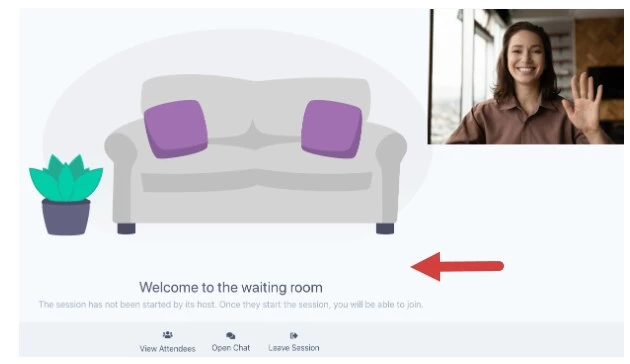
When you first join the session, you will be in the Virtual Waiting Room.
While you are in the Waiting Room:
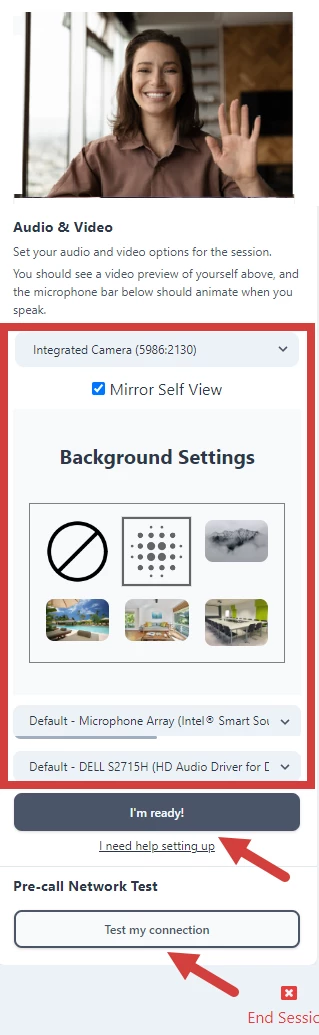
- Click Test my connection to ensure you have a strong internet connection and good video/audio connectivity.
NOTE: You can select a virtual background to display during the session.
- Click I'm Ready.
-
You will go to the waiting room where your provider will admit you into the session.
Manage Session
Once in a session, there are a few actions you can perform:
Via Action Tray
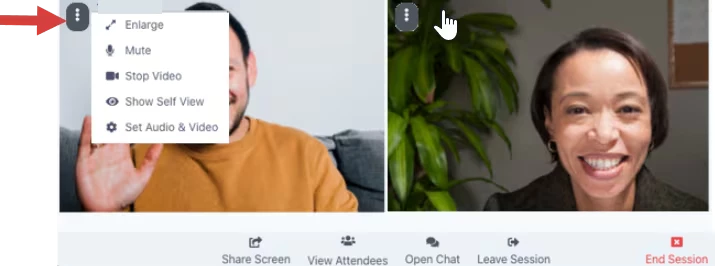
At the bottom of your screen, you can Share your Screen, View all Attendees in the Session, Open the Chat and Leave or End the Session.

- Share Screen - You can share your screen.
IMPORTANT: Do not show anything that would violate HIPAA. We recommend you close out all other screens or apps before sharing your screen to ensure that you aren't sharing HIPAA information.
- View Attendees - Opens a side panel where you can see all Session Participants both those who are admitted and those who are still in the Waiting Room.
- Open Chat - Opens the Chat side panel. You can send a message to anyone who is in the Waiting Room.
NOTE: For Group Sessions: The Waiting Room chat feature is visible to all participants. Anything entered in the waiting room chat will be visible to other Clients as well as other Providers on the session.
- Leave Session - When the session is complete, click Leave Session to exit the Session.
- End Session - Click End Session to end the Session for all Participants.
Via 3 Dot Menu
You can access the 3 Dot Menu for yourself OR your Client. From here you can Enlarge or Shrink a video, Mute, Stop Video or Hide Self View.
- Enlarge or Shrink Video - This allows you to make one person's video primary and the other secondary. (You can also double click on the screen you want to make primary)
- Mute/Unmute - You can mute yourself or any Participant.
- Stop Video - Turns off the video for any Participant.
- Hide Self View - Turns off your video for only you.
- Set Audio & Video
- Fullscreen
Session Ends
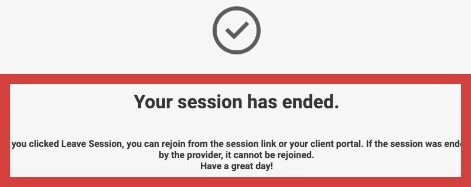
The provider can end the session at any time. This pop-up displays when the session ends.