


Active Directory Login
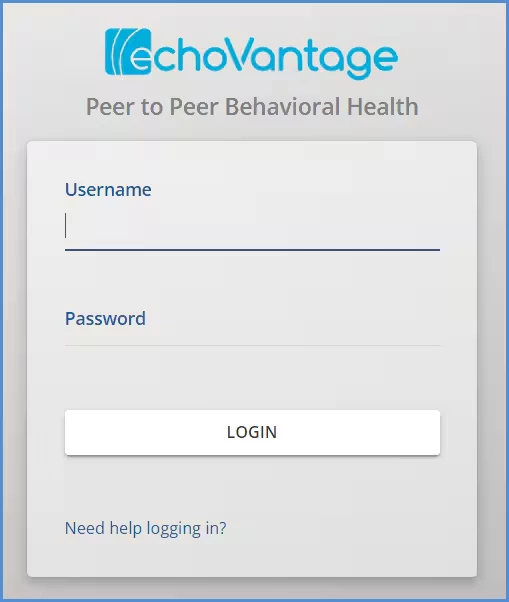
Logging in unlocks the application for your use. Entry of your agency-assigned Username and Password credentials is required anytime you open the application after exiting, session expiration, or accidental closure.
- Your user identity allows access to features of the system, for which you have permissions enabled.
- Your identity is also used to "stamp" records you create, edit, and for auditing, view.
- The name of the database that you are connecting to is visible on the login screen.
- Click the Need help logging? link if you have forgotten your password.
Log in with SSO
Single Sign On (SSO) integrations with Okta and Azure are supported. Additional setup is required by a system administrator. In addition, each user's Application Access Username must be configured to match either their Okta or Azure Username. Once these steps are complete, users will be able to access the application using single sign on. Detailed instructions are available:
Once SSO is enabled, the login screen is styled differently with some additional options.
| Azure SSO Login Screen | |
| Okta SSO Login Screen |
Click on the icon in the top right-hand corner to sign in using Active Directory.
The login screen returns to the familiar Active Directory login.
Selecting the icon again toggles back to the SSO login screen.
Login Messages
Login messages display beneath the application login screen.
- Agency Login Messages can be configured by the agency by inserting a record in the dbo.AgencyLoginMessages table. If the dismissible login messages feature is used, start and end dates should be used when creating and maintaining these agency messages.
An agency can elect to allow individual users to dismiss the login messages displayed on the login screen. If enabled, both the Agency and Global login messages have an 'X' in the upper right-hand corner that allows the message(s) to be dismissed. This new option is not enabled by default; please contact support or your account manager to request the Dismissible Login Messages feature be enabled. When a message is dismissed, the user no longer sees the message when using the same browser and computer. However, if the same user accesses the application using a different browser on the same machine or another device, the login messages are displayed again.
Default Screen After Successful Login
Once a user has successfully logged into the application, the default view is the Clinical Home screen of the Vantage Point from the main application menu. If the currently logged-in user is not a member of a User Group with access to the Clinical Home screen, the application defaults to the first tab in the Vantage point that the user is able to access. If there is no access to the Vantage Point, the default is the first item in the main application menu that the user is able to access, for example, Placements, Clients, etc.