


Prescriptions that fail to transmit to the pharmacy can be addressed from the Tasks page. From here, you can resend or cancel a prescription, report a prescription as missing, or request prior authorization. You can also delete a failed notification from the Tasks page. Deleted prescriptions are removed from the Tasks page but remain on the active medications list.
Click the Select Location and Select Prescriber drop-down fields to filter for a specific location or prescriber. Click the Display dropdown field to select which drugs appear on the Tasks page.
- Select Display All to display all prescriptions.
- Select Controlled to display only controlled substances.
- Select Noncontrolled to display only noncontrolled substances.
To filter for a specific patient, enter the patient name in the Patient Search field, then click the Filter button. Use the Print icon at the top left to print the Tasks page. The page will display with any filters selected.

Jump to Section:
Address Failed Prescriptions
- Click on the Patient Name in the Failed Prescriptions section from the Tasks page.
NOTE: You may need to scroll through other task sections to get to the Failed Prescriptions section at the bottom of the Tasks page.
- Scroll down to the bottom of the Rx Details page and click on the appropriate button to address the failed prescription:
- Resend Rx: Retransmit the prescription. This is not available for controlled substances.
NOTE: Click the drop-down arrow next to Reprint Rx to select Reprint Rx. This is not available for controlled substances.
- Report Missing Rx: Report a prescription that the pharmacy or patient has indicated they did not receive. The Support team will then work with Surescripts to investigate. For information on how to send us a report, see the Report Missing Prescriptions section below.
- Cancel Rx: Notify the pharmacy that the prescription is not to be filled or to cancel any remaining fills. This feature will not be available if the pharmacy does not support the receipt of cancellation messages.
- Request PA: Create a new prior authorization for the prescription.
- Resend Rx: Retransmit the prescription. This is not available for controlled substances.
Delete Failed Prescriptions
- Click the Checkbox next to the Patient Name in the Failed Prescriptions section from the Tasks tab.
NOTE: Providers can select and delete multiple prescriptions at the same time. Click the Checkbox at the top of the column to select all the prescriptions listed.
- Click the Delete button. A message will appear to confirm the action.
- Click the Yes, Delete button.
NOTE: The prescription is removed from the Failed Prescription list but remains on the Active Medication list.
Report Missing Prescriptions
If a patient reports that the pharmacy has informed them they do not have the prescription, but the system shows a Verified status, the prescription is considered missing.
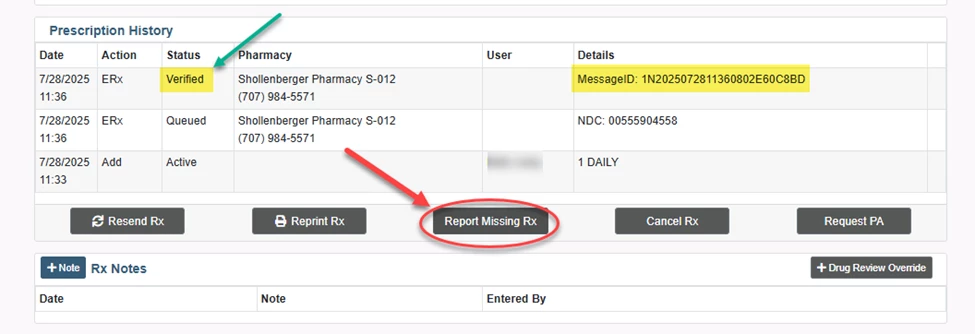
NOTE: eRx will not display Verified or Successful status until the pharmacy’s system digitally communicates with ours. Before that confirmation, the status may show as Queued or Pending, or it may ultimately fail. It can take several seconds or minutes for a queued prescription to update to Successful, Verified or Failure.
When a medication is transmitted, it is assigned a MessageID. The MessageID is used to track and investigate failed and missing prescriptions with Surescripts.
To report the missing prescription:
- In the Prescription History modal, click the Report Missing Rx button.
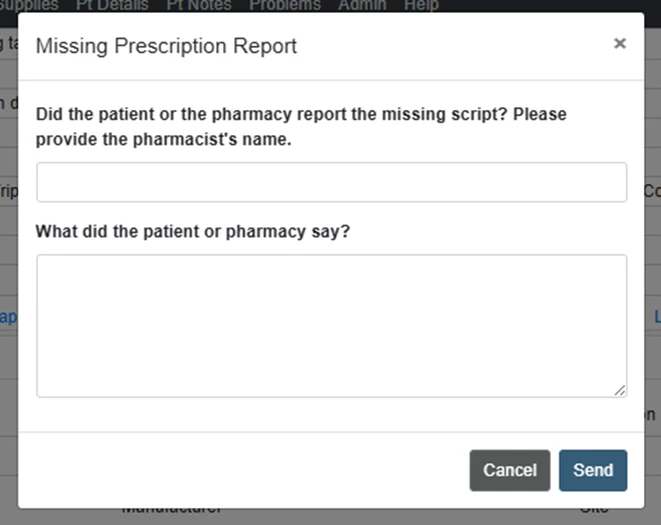
- The Missing Prescription Report window will open.
-
- Complete the form including as much detail as possible.
- Click the blue Send button.
Related Articles: