Jump to Section:
Failed Prescription Errors
IMPORTANT: Make sure you are logged into one session at a time. Having multiple sessions open at the same time can cause failed prescription errors and other issues.
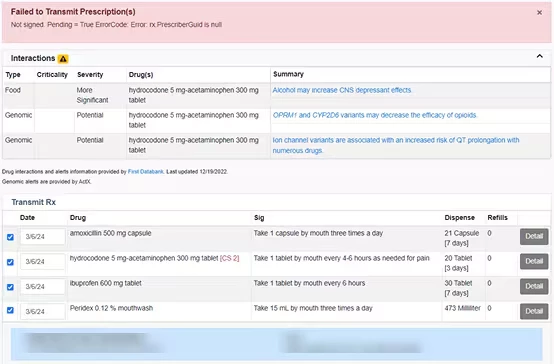
Failure Error: Not Signed (rx.PrescriberGuid is null)
This failure message usually happens because a provider has not approved a push notification in time, or if they pressed the Enter key after manually typing in the OTP from the authenticator application. After entering the OTP, providers should click the sign/transmit button, and not press the Enter key.
Message type not supported by sender
This failure message means that Surescripts has marked the provider's SPI inactive due to lack of use. Re-registering the provider with Surescripts will resolve the issue.
Attempting to update the location does not own this prescriber
This failure means that the provider switched away from the system and the system longer owns this SPI. If the provider needs to still use the system, registering the provider for a service level of New only, meaning the provider can transmit new Rxs out but no longer receive renewal requests, and generating a new SPI/LOC will resolve the issue.
Failure Internal error. Contact pharmacy by other means
This failure means that the pharmacy is having connectivity issues.
Failure Portal is not configured to send message version 6.1
This failure means that an account has been moved over to 20170701 and the provider was not re-registered with Surescripts to be in the correct portal. Re-registering the provider with Surescripts will resolve the issue.
Failure Error: The 'Header' element is not declared or The 'Body' element is not declared
This failure means that the match with Surescripts was being attempted at the same time that the Rx was being sent. The result is the header was not added to the XML in the background when sending it over to the pharmacy. Resending the Rx normally will resolve this issue.
Failure Ex: VR: Error The 'PayerID' element is not declared
This failure means that the payerID had not yet been populated from Surescripts Benefit and History at the time the Rx was sent. Resending the Rx normally will resolve this issue.
Failure Partner rejected transaction with an error
You will see this failure with Rxs sent to CVS. This failure means that a 2nd duplicated Rx was sent and failed. The 1st one was received without any issues.
Failure Error: The operation has timed out
This failure means there are connectivity issues with the pharmacy. Resending the Rx will usually resolve this. If it does not, the support team will have to open a ticket with Surescripts for them to research further.
Failure Error: The underlying connection was closed: An unexpected error occurred on a receive
This failure means there are connectivity issues with the pharmacy. Resending the Rx will usually resolve this. If it does not, the support team will have to open a ticket with Surescripts for them to research further.
Failure Unexpected Exception occurred while processing the request
This error means there are connectivity issues with the pharmacy. Resending the Rx will usually resolve this. If it does not, the support team will have to open a ticket with Surescripts for them to research further.
Failure Transaction is a duplicate
This failure means that a 2nd duplicated Rx was sent and failed. The 1st one was received without any issues.
Failure Duplicate Prescription, original message has been processed
This failure means that a 2nd duplicated Rx was sent and failed. The 1st one was received without any issues.
Failure Not authorized to send Controlled Substance
This failure means the provider did not re-registered with Surescripts once EPCS was completed. Re-registering the provider with Surescripts will resolve the issue.
EPCS and Exostar Registration Errors
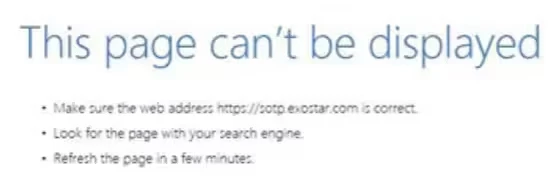
Exostar Registration Error: Page can not be displayed
If the provider is unable to access the Exostar website and sees a message that says This Page Can't Be Displayed, the provider should add the exostar website, exostar.com, as a trusted site in their web browser.
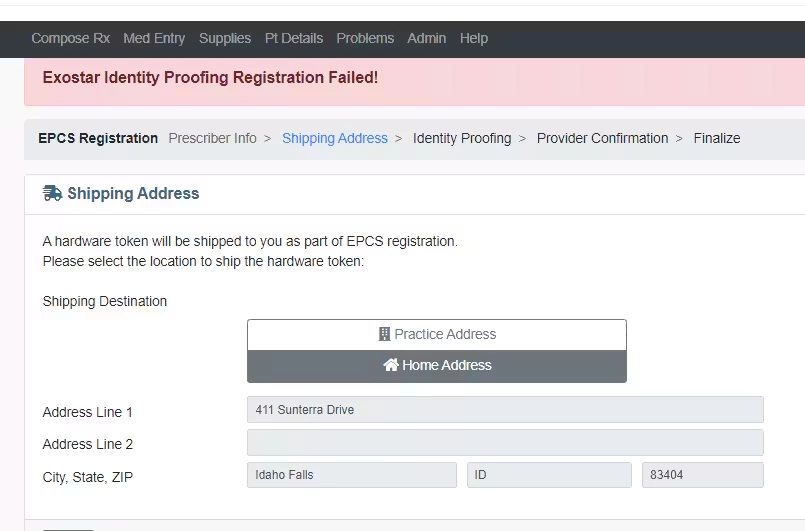
Exostar Registration Error: Exostar Identity Proofing Registration Failed
This usually happens when the provider has completed a webcam identity proofing appointment and received an OTP, but did not use the OTP at the time, and the OTP has expired. OTPs are time sensitive and must be used to complete the identity proofing process before they expire. If the provider attempts to enter the OTP and is brought back to the "Schedule Your Webcam Appointment" step, they will need to schedule another appointment to complete the EPCS Webcam Identity Proofing Process.
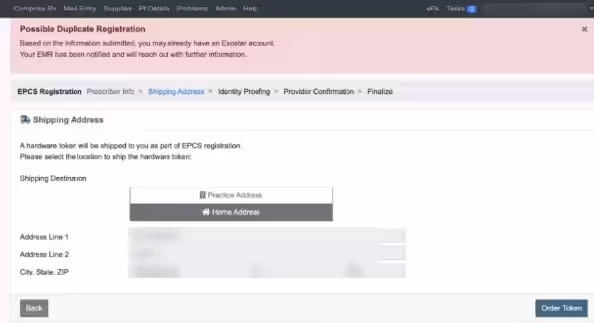
EPCS Registration Errors: Possible Duplicate Registration
This error sends a notification to the support team to copy over the license key, so the provider does not need to contact Support or their EHR. The support team will contact the provider at the email associated with the Exostar ID, and the EHR will reach out to the provider as well.
Other Errors
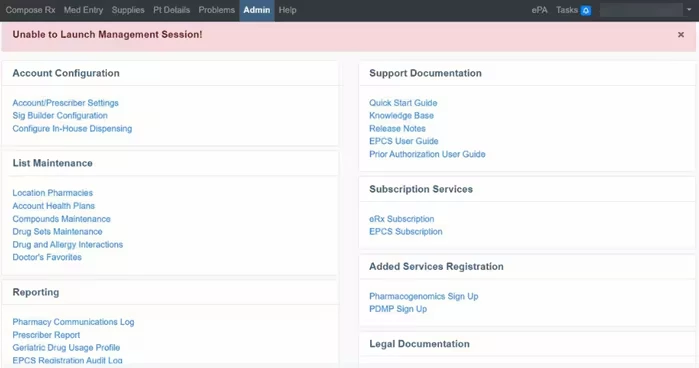
Unable to Launch Management Session
This error message usually indicates that the provider's EPCS license key is suspended or inactive. Providers should contact their EMR/EHR Support.