


PERMISSIONS REQUIRED: You need the Docs permission to write a document.
Write an evaluation document (initial evaluation, progress note, or re-assessment) to assess a patient's functioning or progress in therapy.
- An initial evaluation is typically completed at the start of care to assess a patient's functioning and determine if services are warranted.
- Use a re-assessment to fully re-evaluate a patient as needed by their payers.
- Use a progress note to report on a patient's progress in between re-assessments.
NOTE: This article has detailed information on completing the documentation sections for evaluations, progress notes and re-assessments. For instructions on how to create a new document, see Create a Document.
NOTE: Many special characters, such as ð or ñ, can be saved in the goal bank, goals, daily notes, and evaluations when they are pasted in or inserted with an alt-code.
Jump to Section:
Edit a Document
Once you have opened a document to edit, there are a few basic mechanics to help you navigate and make changes throughout the document.
If there is any section you do not want to use, leave it blank and it will not be shown on the final document.
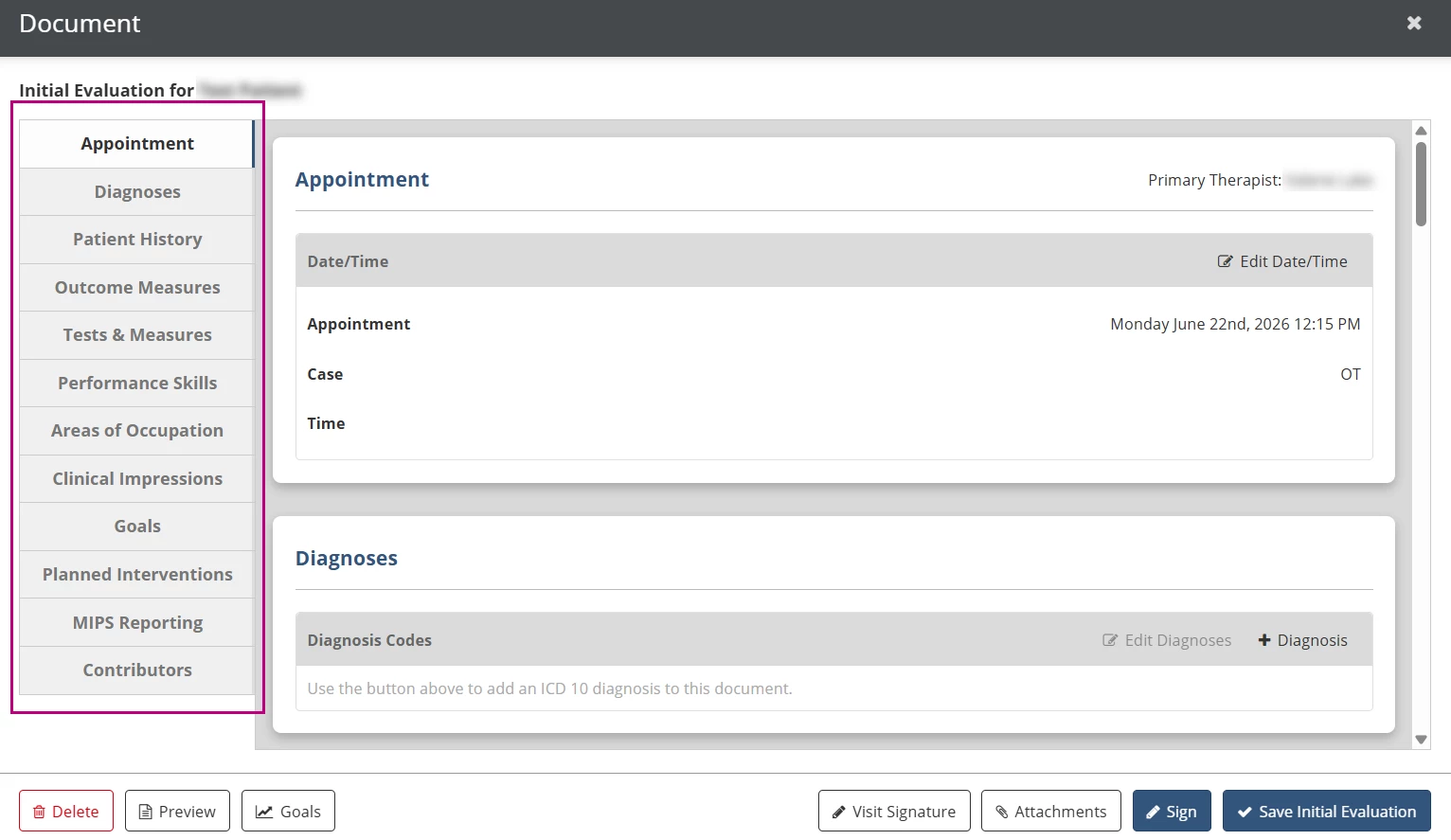
Navigate Between Sections
To quickly scroll down to a specific section in the document, click the section's tab to the left.
Edit and Save a Section
To start editing the information in a section of a document, either click the section's Edit button or click anywhere in the section.
When you are finished making changes, click the Save button at the top of the section to save it. The section will also save automatically if you click in a different section on the document.
Pull Forward from a Previous Evaluation
You can click the Pull Forward button above most sections to copy information from a previous evaluation.
- Information will be copied from the most recent evaluation where that section was used. For documents linked to an appointment, the appointment's visit date is used. For documents not linked to an appointment, the document's created date is used.
-
The Pull Forward buttons will only pull forward content from previous, signed documents for the same patient case.
- Make sure any information you pull forward is updated to reflect the current treatment session before you sign the document.
Use a Quick Phrase
You can use quick phrases that your clinic has set up to quickly insert commonly-used text into a field. While typing in a field, type a period followed by the short phrase to bring up the quick phrase list.
Appointment
Fill in the basic information about the appointment:
- In the Appointment field, you can select or change the appointment the document is linked to. An appointment isn't required for progress notes.
- In the Time field, you can fill in the time the session actually began and ended. If you've already filled this in on the daily note linked to the same appointment, you can click the Copy icon
to bring over that information.
- The Case field indicates what patient case the document is associated with. You cannot change a document that has been started to a different case or to an appointment for a different case.
Diagnoses
The diagnosis codes on an evaluation are automatically copied from the patient's current diagnosis. Any changes made to diagnosis codes here will update the codes on the patient when you sign the document.
Patient History
Record information about the patient's history, which could include medical status, education, cultural and family background, and information from other professionals or service providers about the reason the patient is seeking therapy services.
Outcome Measures
Select any of your clinic's outcome measures that you want to use to record the patient's baseline or changes in functioning, activities, or participation.
Tests & Measures
Select any of your clinic's tests or other assessments to record test results from this evaluation.
Performance Skills / Findings
Select from Performance Skills (for OT) or Findings (for PT, ST, VT, PS, TH, and CM) to record the patient's strengths and weaknesses for specific skill areas based on your assessments.
Areas of Occupation / Functional Measures
Select from Areas of Occupation (for OT) or Functional Measures (for PT) to record how the strengths and weaknesses identified in the previous section impact specific aspects of the patient's daily life.
Clinical Impressions
- In the Strengths section, describe your assessment of the patient's strengths.
- In the Performance Impairments section, describe your assessment of the patient's weaknesses.
- In the Functional Limitations section, explain how the patient's weaknesses affect their daily life.
- In the Summary section, you can record the overall summary of your assessment findings and treatment recommendations.
- In the Patient Education section, describe any information or education you've provided to the patient or caregivers.
- In the Home Activities section, choose whether or not to include home activities that have been linked to the patient's previous daily notes for a given period of time.
Goals
Only the goals for the patient case associated with the document (or appointment) will appear.
In the Options section, choose the time frame for goal data to include in the document and whether or not to include graphs.
In the Included Goals & Notes section, record any comments you have about the goals and choose whether each goal should appear on the main document, the plan of care, both documents, or neither document. A long-term goal will always be visible on the document if any of its short-term goals are shown.
Default Goal Visibility
A goal's default visibility on a document depends on its status and whether or not it has data recorded in the selected time frame. By default:
- An initial evaluation will show goals that haven't been archived.
- A progress note or re-assessment will show goals that include data in the selected time frame, even if that goal has been archived or mastered.
- The plan of care for a progress note or re-assessment will show goals that haven't been archived or mastered.
Planned Interventions
- In the Billing Codes section, list the billing codes you plan to use for the patient's upcoming sessions. This will not be used to submit charges for this visit.
- In the Frequency / Duration section, indicate the frequency of the patient's treatment sessions, how long you expect the patient to receive therapy and the effective date range for the patient's plan of care. The fill icon
will calculate dates based on the Plan of Care Effective Range in clinic options.
- In the Intervention Comments section, you can type in additional information about the intervention or treatment plan.
- The Patient Acceptance field can be used to indicate whether or not the document has been reviewed and accepted by the patient. This will not appear on the final document.”=
MIPS Reporting
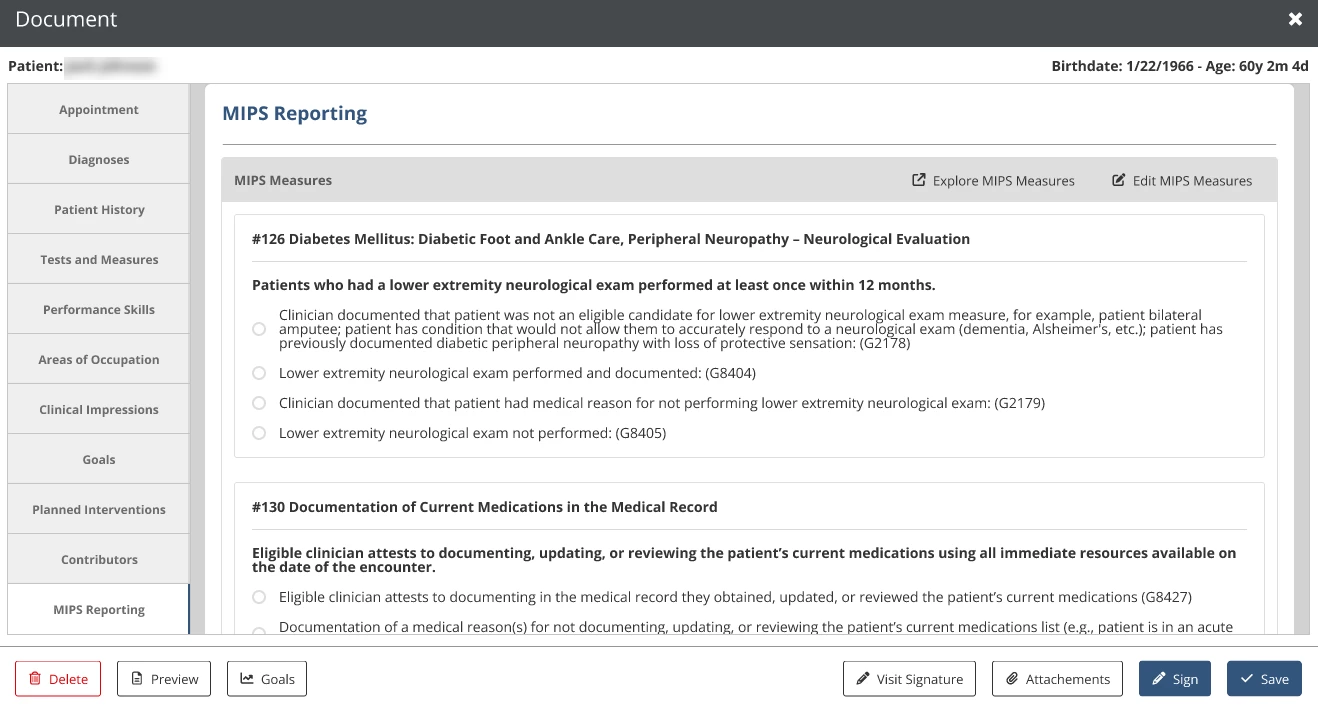
The MIPS Reporting section displays MIPS measures that apply to the patient and have been selected for tracking by the clinic or clinician. You will be able to document a response for each measure that pulls into this section. These measures and responses are used in MIPS reporting.
Tip!: Click Explore MIPS Measures at the top of the section to learn more about the available measures and activities for each performance category.
Contributors
Add an Attachment
| 1. In the lower right corner, click the Attachments button | 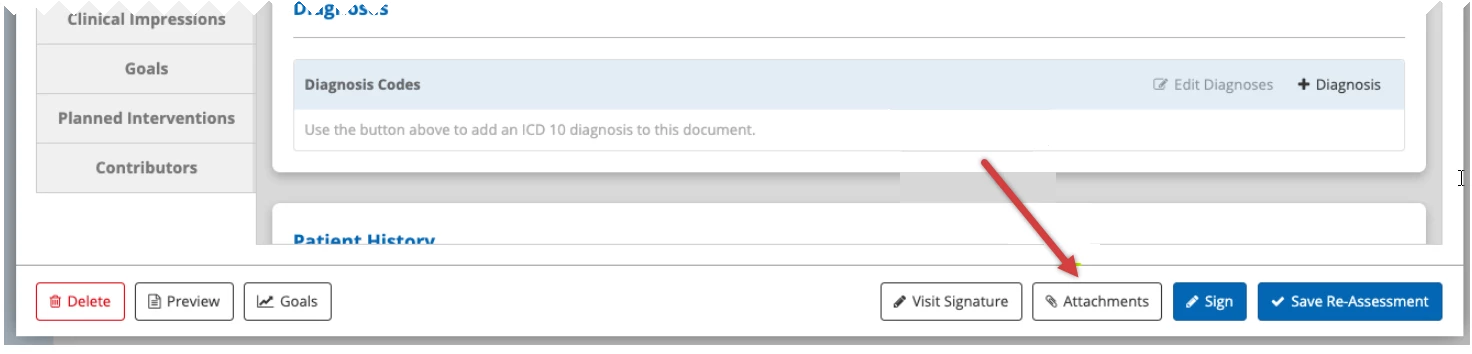
|
| 2, In the new window, click the +File button | |
| 3. In the File section, click Choose File to select the file from your computer. | |
| 4. The name will default to the name of the file. Click inside the Name field the edit the name.
5. Click the Add Attachment button. |
Sign the Document
When you've finished working on a document, click the Sign button in the lower right to add your signature and complete it.
| Field | Description |
| Document Name | If needed, choose an alternate document name that will appear on the final document and in the list of completed documents. |
| Co-Signer | If the primary therapist does not have the Signoff permission, you can send the document to a co-signer. If present, this field is always required for evaluations. |
| Revision Reason | Explain why the document had to be revised and what changed. A log of revision reasons is kept so it can be provided to payers if needed. This only appears if the document has been revised and the clinic's Document Revision History is set to Detailed. |
| Sign Date | The date this document was originally signed. |
| Password | Type in your password. |