PERMISSIONS REQUIRED: You need the Docs permission to add a visit signature.
You can record a patient or caregiver signature for an appointment, which will appear on documentation to verify that services took place. This is typically used for home or school-based treatment. The visit signature will appear on all documentation for the appointment, including evaluation-type documents.
If the patient or caregiver is physically present, you can capture an in-person signature before the document is signed. You can also request a visit signature on a signed or unsigned document via the patient portal. When you send a visit signature request via the patient portal, the portal user will get an email asking them to log into the patient portal to provide a signature.
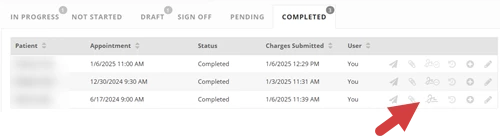
Visit Signature status displays on the Completed Documents list, which you can view from the documents tab or by clicking the Documents button in the patient chart.
- The Visit Signature icon indicates that the document does not have a visit signature. (You can click this icon to Request a Visit Signature via the Patient Portal.)

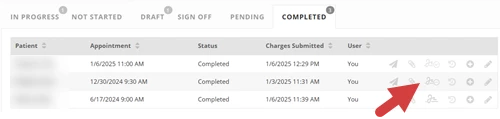
- The Visit Signature Pending icon indicates that a visit signature has been requested via the portal but has not been completed by the portal user.

- The Visit Signature Provided icon indicates that a visit signature has been provided.

NOTE: Once a visit signature is added, you won't be able to change the date of the appointment.
Jump to Section:
Get an In-Person Visit Signature
If the patient or caregiver providing the visit signature is physically present, you can capture their signature on a document before the document has been signed.
TIP: In-Person Signatures are generally best captured using a touch-screen device.
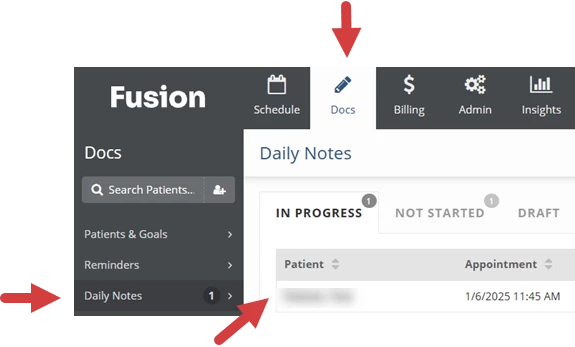
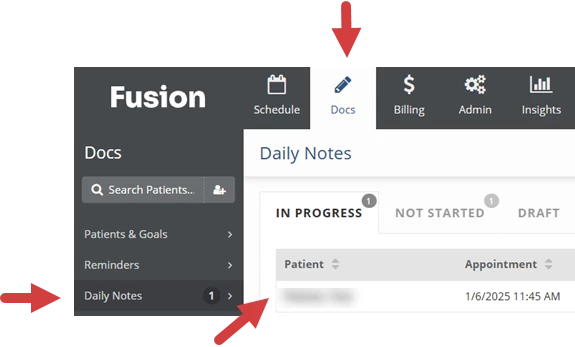
- Click the Docs at the top of the screen.
- Select Daily Note (or the appropriate document type).
- Click the in-progress Note for the visit that needs a signature.
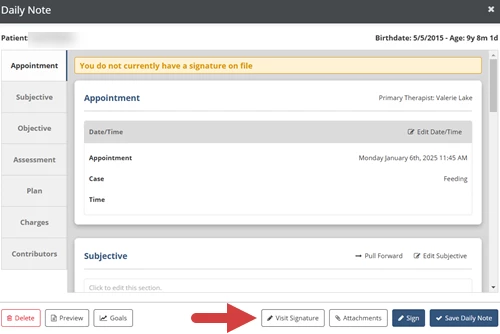
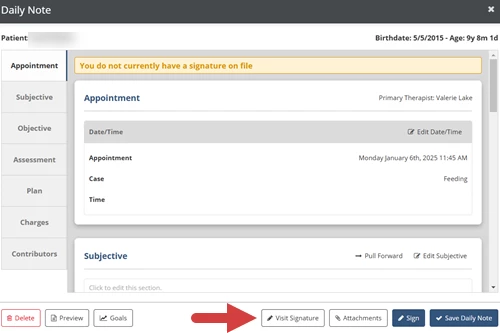
- Click the Visit Signature button at the bottom.
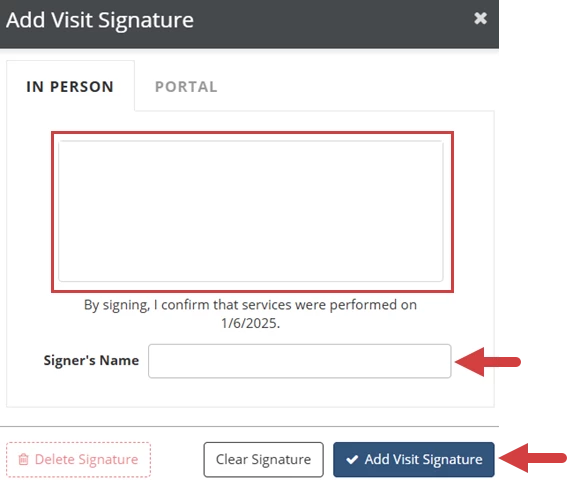
- Type the name of the person who is signing in the Signers Name field.
- Have the patient or caregiver sign in the white box to confirm that services were performed on the listed date of service.
- Click the Add Visit Signature button.
Request a Visit Signature via the Patient Portal on an Unsigned Document
If the patient or caregiver providing the visit signature is not physically present, you can send them a visit signature request via the patient portal. This allows the portal user to provide a visit signature digitally. This can be helpful when capturing visit signatures for teletherapy appointments.
NOTE: Requesting a visit signature will not prevent you from signing a document.
- Click the Docs tab at the top of the screen.
- Select Daily Note (or the appropriate document type).
- Click the in-progress Note for the visit that needs a signature.
- Click the Visit Signature button at the bottom.
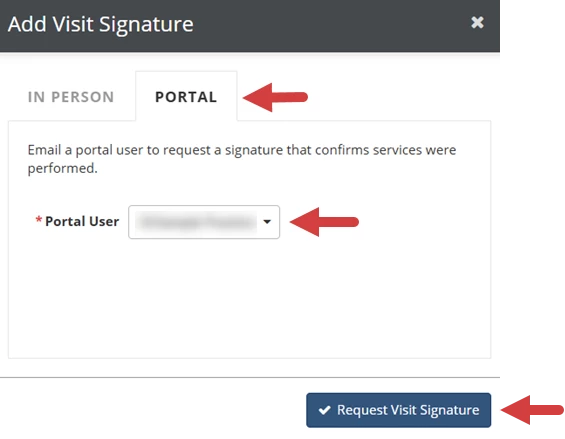
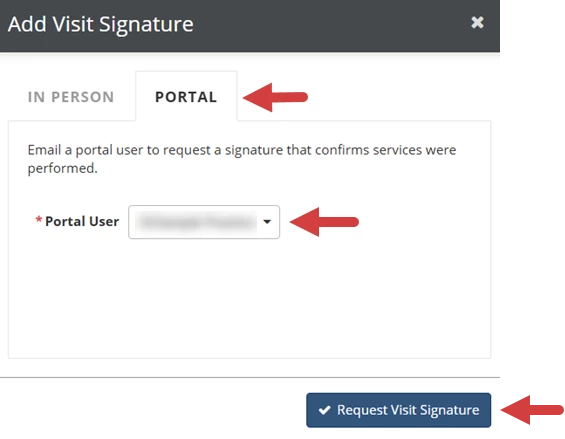
- Click the Portal tab.
- Click the Portal User drop-down to select the portal user.
- Click the Request Visit Signature button.
Request a Visit Signature via the Patient Portal on an Signed Document
Use the patient portal to request a visit signature for a completed document.
- Click the Docs tab at the top of the screen.
- Select Daily Note (or the appropriate document type).
- Click the Completed tab.
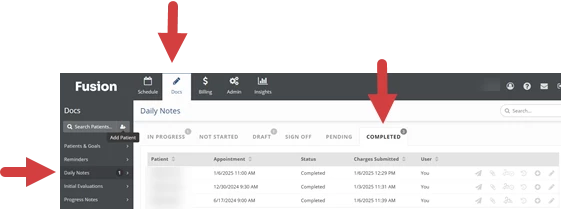
- Click the document's Visit Signature icon.
- Click the Portal tab.
- Click the Portal User drop-down to select the portal user.
- Click the Request Visit Signature button.
Cancel a Visit Signature Request
You can cancel a visit signature request if the portal user has not yet completed the visit signature. This can be useful if you need to cancel a signature request so you can send a visit signature request to a different portal user.
- Click the Docs tab at the top of the screen.
- Select Daily Note (or the appropriate document type).
- If the note is in progress, open the note, then click the Visit Signature button. If the note is completed, click the document's Visit Signature Pending icon.
In Progress Document: Completed Document: 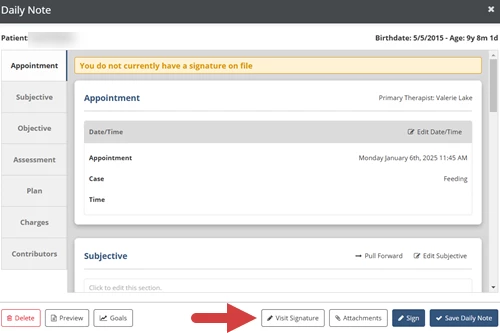
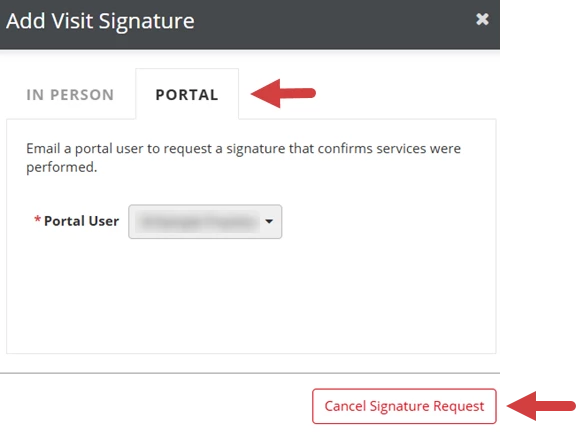
- Click the Portal tab.
- Click the Cancel Signature Request button.