


PERMISSIONS REQUIRED: You need the Docs permission to write a document.
Write an evaluation document (initial evaluation, progress note, or re-assessment) to assess a patient's functioning or progress in therapy.
- An initial evaluation is typically completed at the start of care to assess a patient's functioning and determine if services are warranted.
- Use a re-assessment to fully re-evaluate a patient as needed by their payers.
- Use a progress note to report on a patient's progress in between reassessments.
NOTE: Support can now partner with you on creating configurable Evaluation Forms specifically for your clinic. Feel free to follow this link to our FAQ: Configurable Evaluation Sections article. For more information, please reach out to support using the Community Portal.
NOTE: Many special characters, such as ð or ñ, can be saved in the goal bank, goals, daily notes, and evaluations when they are pasted in or inserted with an alt-code.
Create Initial Evaluation
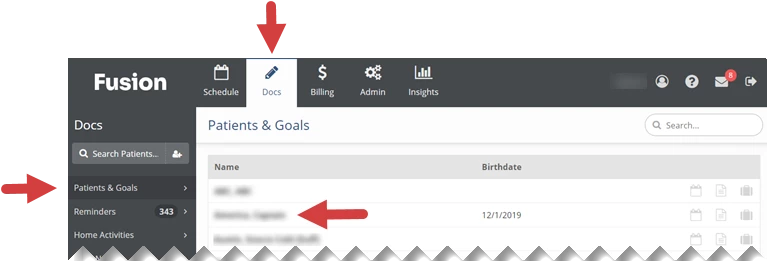
- Click the Docs tab at the top of the screen.
- Click Patients and Goals in the menu on the left.
- Click the Name of the patient you are creating a document for.
- If your patient has more than one patient case, the Select Case window will appear. Click the Case Name to select the case that the document will be added to.
- If your patient has one patient case, that patient case will open by default. You will skip this step.
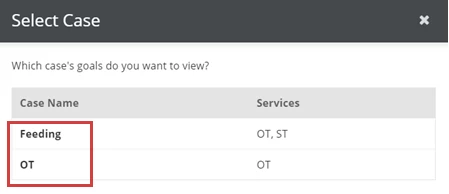
- If your patient has one patient case, that patient case will open by default. You will skip this step.
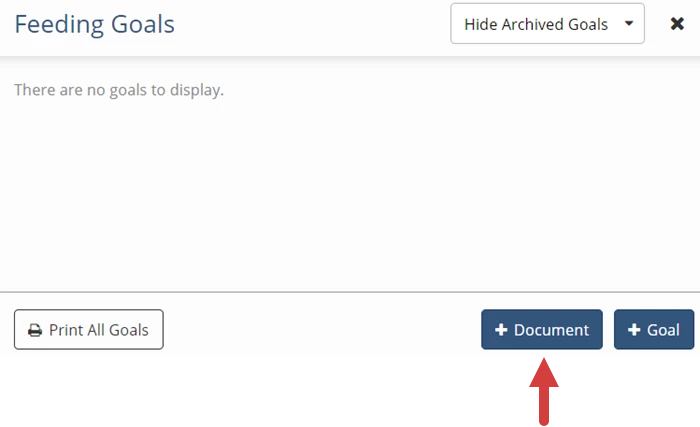
- Click the +Document button in the lower right.
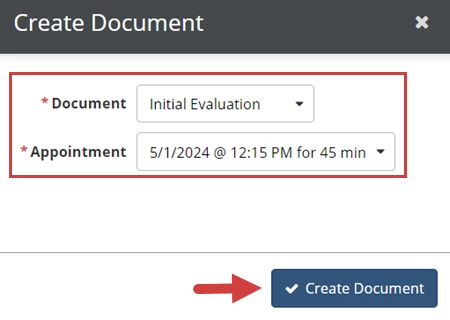
- Click the Document drop-down and select Initial Evaluation.
- Click the Appointment drop-down and select an Appointment.
- Click Create Document.
- Complete the Initial Evaluation.
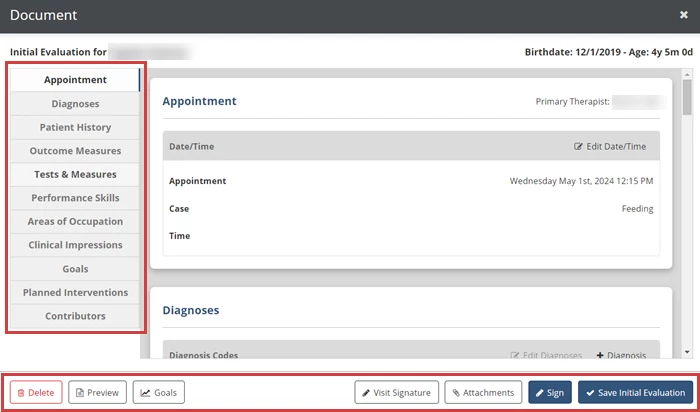
The Initial Evaluation is organized by the tabs on the left side of the note. Click any tab to jump to that part of the note, or use the scroll bar on the right to navigate through the note. Use the buttons at the bottom of the daily note to perform additional functions.
When your documentation is complete, click the Sign button.
NOTE: The Appointment section will indicate what patient case the evaluation document is associated with. You cannot change a document that has been started to a different case or to an appointment for a different case. Only the goals for the patient case associated with the initial evaluation will display.
- Click the Delete button to delete the note.
- Click the Preview button to preview, download or print the note.
- Click the Goals button to view patient goals.
- Click the Visit Signature button to add a visit signature.
- Click the Attachments button to add attachments to the note.
- Click the Sign button to sign the note.
- Click the Save Initial Evaluation button to save your documentation and finish the note later.
Click the Edit button in the upper right corner of each section (or click anywhere inside of the section) to edit that section, then when you're finished, click the Save button in the upper right corner. The section will also save automatically if you click in a different section on the document.
NOTE: You can use Quick Phrases to inset commonly used text into your note. Quick Phrases are set up by your clinic and can be pulled in by typing a period followed by the Quick Phrase.
- Information pulls from signed documents for the same patient case.
- Make sure any information you pull forward is updated to reflect the current treatment session before you sign the note.