PERMISSIONS REQUIRED: You need the Docs permission to change a patient's goals.
Add goals to a patient to track and report on their progress towards meeting their therapy objectives. After you add a goal to a patient, you can record goal data from the Docs tab or while writing a daily note. Patient goals are reported in evaluation-type documents.
If your patient has one patient case, the goal will be added to that case by default. If your patient has more than one patient case, you will be able to select the appropriate case to add the new goal to after your click on the patient name. When adding the goal, you can choose from goal categories for any service type associated with the case, regardless of your service type.
Jump to Section:
Add a Long-Term Goal
Long-term goals typically represent the ultimate outcome a patient is working toward.
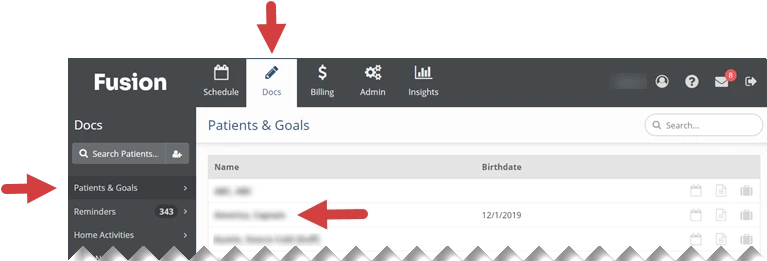
- Click the Docs tab at the top of the screen.
- Click Patients and Goals in the menu on the left.
- Click the Name of the patient you are adding the goal to.
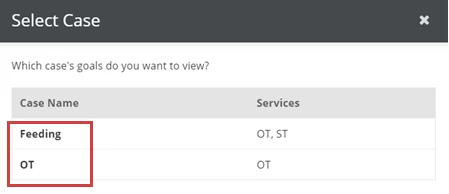
- If your patient has more than one patient case, the Select Case window will appear. Click the Case Name to select the case that the new goal will be added to.
- If your patient has one patient case, that patient case will open by default. You will skip this step.
- If your patient has one patient case, that patient case will open by default. You will skip this step.
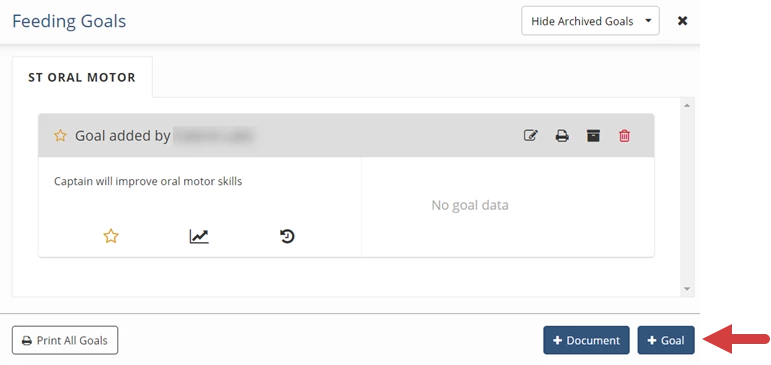
- Click the +Goal button in the lower right.
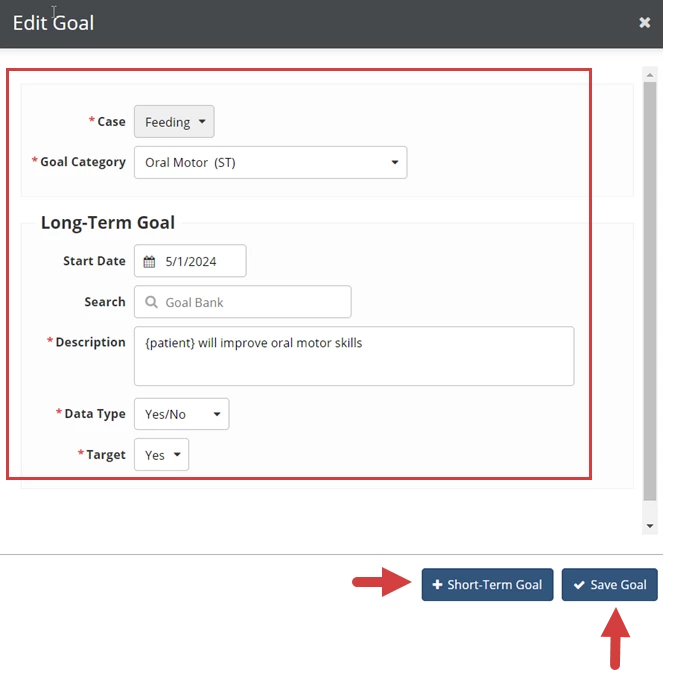
- Enter Goal Information
- Goal Category: The goal category, or skill area, the goal is addressing
- Start Date: The date the patient will begin working on the goal during treatment
- Goal Bank Search: Search for and select goals from your clinic's goal bank to fill in the description
- Description: A description of the patient's goal that will appear on their documents
- Data Type: The type of data that will be recorded when measuring the goal
- Target: The point that the goal is considered mastered
- Unit: How the goal will be measured. This only appears for the Other data type
- Out of: The total number of trials. This only appears for the Trials (X/Y) data type.
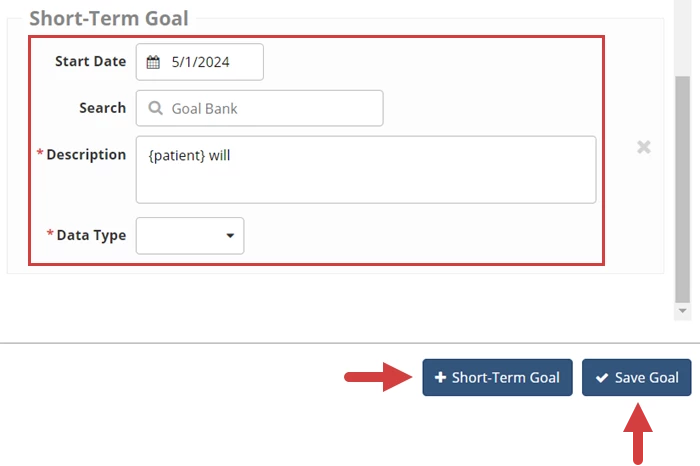
- Optional: Click the +Short Term Goal button to add a short term goal to the long term goal.
- Click the Save Goal button.
Add a Short-Term Goal
Short-term goals can be added to a long-term goal to track more specific objectives that help the patient work toward the long-term goal.
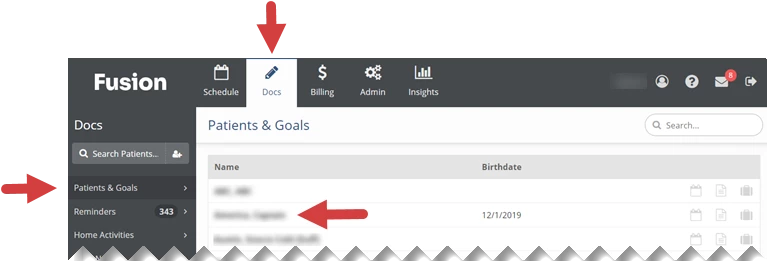
- Click the Docs tab at the top of the screen.
- Click Patients and Goals in the menu on the left.
- Click the Name of the patient you are adding the goal to.
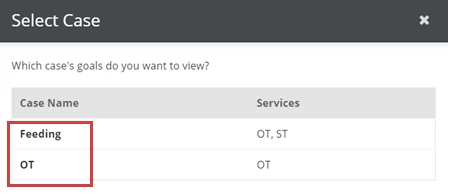
- If your patient has more than one patient case, the Select Case window will appear. Click the Case Name to select the case that the new goal will be added to.
- If your patient has one patient case, that patient case will open by default. You will skip this step.
- If your patient has one patient case, that patient case will open by default. You will skip this step.
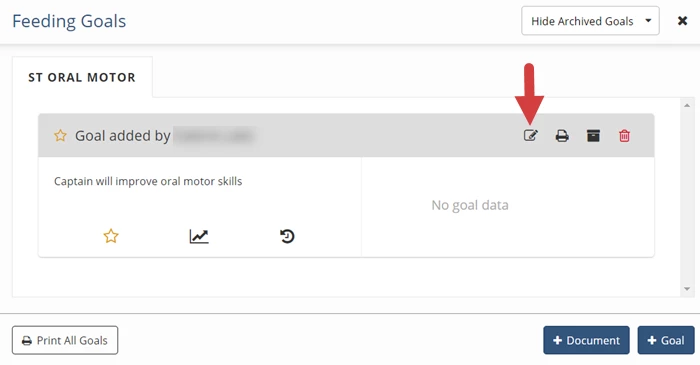
- Click the Edit icon above the long-term goal.
- Click the +Short Term Goal button.
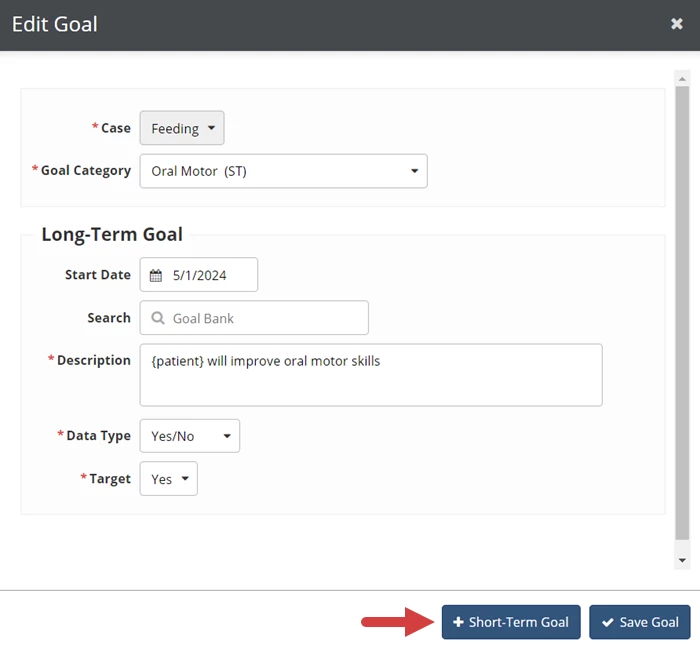
- Enter Goal Information.
- Goal Category: The goal category, or skill area, the goal is addressing.
- Start Date: The date the patient will begin working on the goal during treatment.
- Goal Bank Search: Search for and select goals from your clinic's goal bank to fill in the description.
- Description: A description of the patient's goal that will appear on their documents.
- Data Type: The type of data that will be recorded when measuring the goal.
- Target: The point that the goal is considered mastered.
- Unit: How the goal will be measured. This only appears for the Other data type.
- Out of: The total number of trials. This only appears for the Trials (X/Y) data type.
- Optional: Click the +Short Term Goal button to add additional short term goals.
- Click the Save Goal button.