


The Profile Tab stores service processing defaults. This includes start and end dates to verify if the service is valid and default options for billing processes.
Jump to Section:
General Configuration
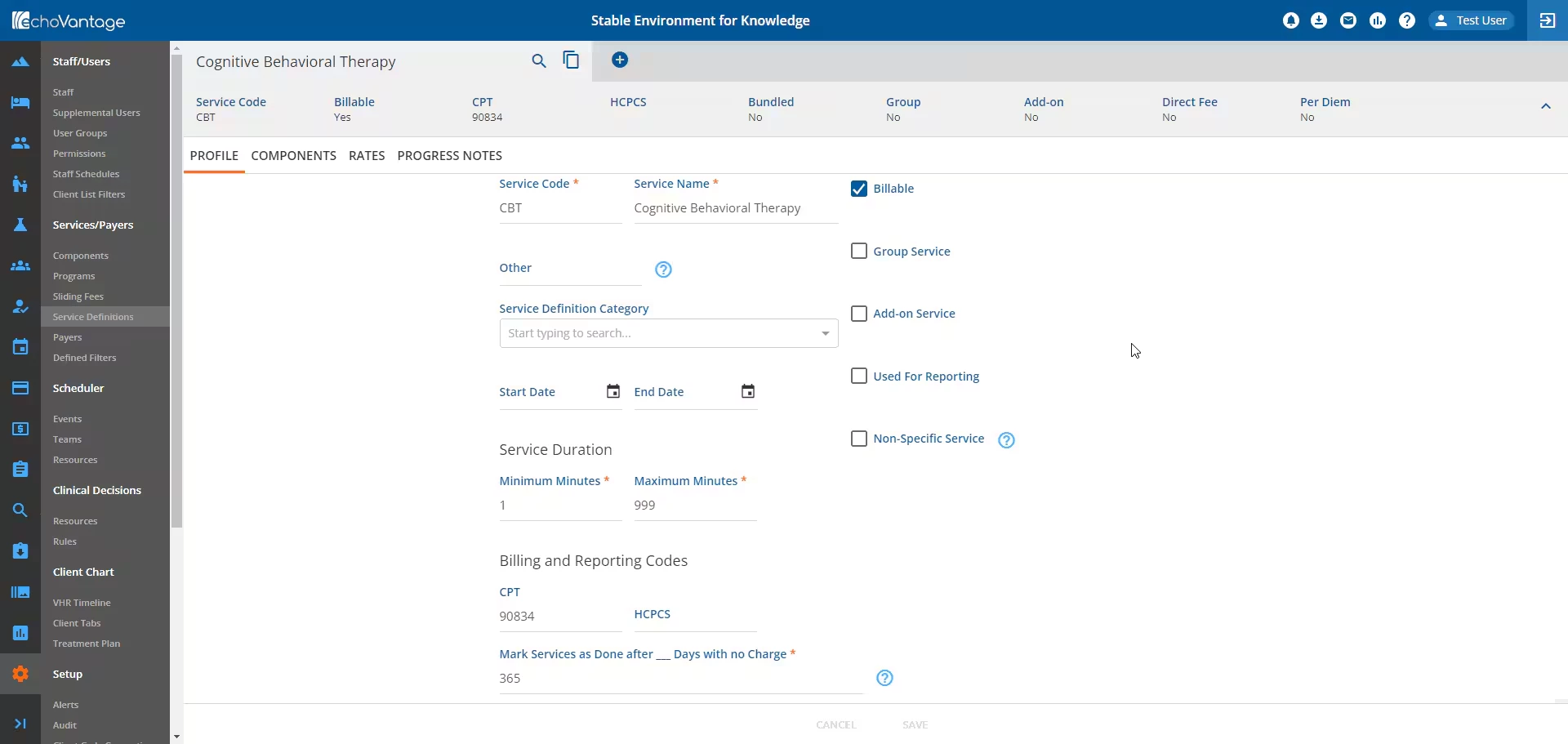
The Service Code and Service Name fields populate automatically from the +Add Service Definition window when saved.
Other - This optional field is available for internal or state reporting purposes allowing users to store additional service definition information.
Service Definition Category - This field can be used to identify the type of Service Definition selected and classify services by category. The Service Definition Categories defined list in Configuration - Setup > Defined Lists is where values for this field must be configured and is user defined.
Start Date and End Date - The Start and End Dates determine the active period of the Service Definition.
- Start Date may be left blank during initial creation.
- End Date is the last day the Service Definition is active.
Service Duration
Minimum Minutes and Maximum Minutes - Use these fields to define the length of Service or Service Duration.
- This allows different CPT codes to be applied to the same service based on time.
- Service Definitions can point to the same component codes but have different durations and billing codes.
- When multiple results are returned in Service entry, the Minimum and Maximum minutes help further refine the search.
Billing and Reporting Codes
Enter the CPT, HCPCS, or both codes for the service.
CPT - Current Procedural Terminology
- This is a five-digit number code identifying any procedures billed to public or commercial health insurance payer plans with which the service is associated.
- CPT is a Level I HCPCS. This code set reports medical procedures and professional services furnished in ambulatory/outpatient settings, including physician visits to inpatients.
HCPCS - Healthcare Common Procedure Coding System.
- This is an alphanumeric code.
- Billing applies the code to the service for use with Payer Plan reimbursements.
- HCPCS is a Level II HCPCS. This code set reports medical items, supplies, procedures, and certain professional services not described by any CPT codes, for example, service bundling.
Mark Services as Done after __ Days with no Charge
- Enter the number of days after which the Service should be marked as Done if no Charge is created. This means that the Service will never create a Charge and will be excluded from future Service Processing jobs.
There are five options to further define the service: Billable, Group Service, Add-on Service, Used for Reporting, and Non-Specific Service.
- Billable is checked by default. Uncheck if the current Service Definition is not billable to any Payer Plan.
- Group Service - Select if the service is provided in a group setting as opposed to one-on-one.
- This field tracks a service applied to multiple Clients through each staff member involved with a group session occurring at a specific time.
- Client billing is through the staff member, providing services to the Client member.
- Add-on Service - Select if the service provided is in addition to, or not part of the primary service.
- Used for Reporting - Select this box for the ability to define the Service Definition as an Encounter or a Procedure for purposes of CCD Reporting and Exports.
- When the Used for Reporting checkbox is selected, the following additional fields display:
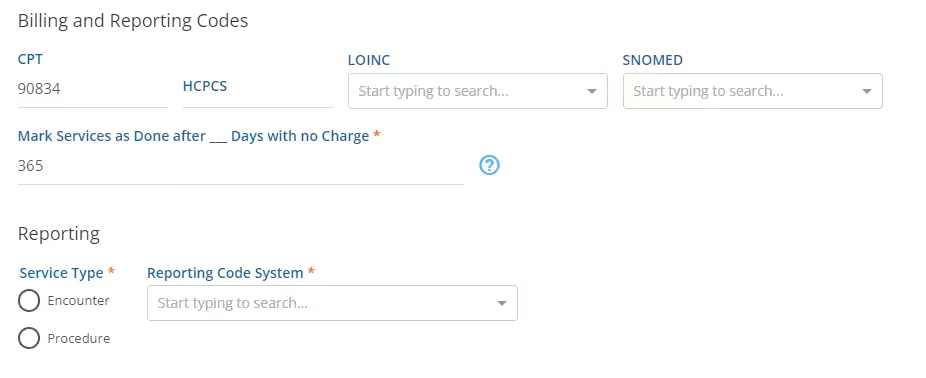
- Optional LOINC and SNOMED fields appear in the Billing and Reporting Codes section.
- Select available options from the LOINC and SNOMED fields.
- A new Reporting section will appear with required Service Type and Reporting Code System fields.
- The Service Type field has two available options: Encounter or Procedure.
- Select one of the options available within the Reporting Code System field. Depending on the organization, the options available may include: CPT, HCPCS, LOINC, SNOMED.
NOTE: Options within the drop-down may be disabled. Reporting Code System options become available when a code is entered into the corresponding free text field. Enter a code into the CPT, HCPCS, LOINC, and SNOMED field to enable the option.
- When the Used for Reporting checkbox is selected, the following additional fields display:
- Non-Specific Service - Select this checkbox to indicate that the Service Definition is for a non-specific service.
- There is an 80 character free text field for the description.
- This text description is reported on the 837P file in Loop 2400 Section SV101-7.
- Once all field are complete, click the blue Save button to record the Service Definition in draft.
- The Service Definition, if not previously published, will appear in draft status. A yellow banner will display within the screen, with options to Publish and Discard the draft Service Definition.

- Click the Publish button to make the configuration active for Service Entry.
- Click the Discard button to delete the draft Service Definition.
The values entered on the Service Definitions Profile screen are considered the default configuration for Payers.
IMPORTANT: Remember to publish a draft version of a Service Definition when the configuration is complete. Only published service definitions are considered in Service Entry.
If specific Payers require other values, the default configuration can be overridden for a specific payer or group of payers. See the Service Definitions: Rates Tab for more information.
If the Service Definition was marked as Bundled within the +Add Service Definition window, continue to the next section.
Bundling Options
For an active Service Definition and Payer, individual services can be combined into a bundle that providers and payers bill as a single service package. If Bundling was selected when creating the Service Definition, the Bundled Header Label displays Yes and a section to add Bundling Options will appear at the bottom of the screen.
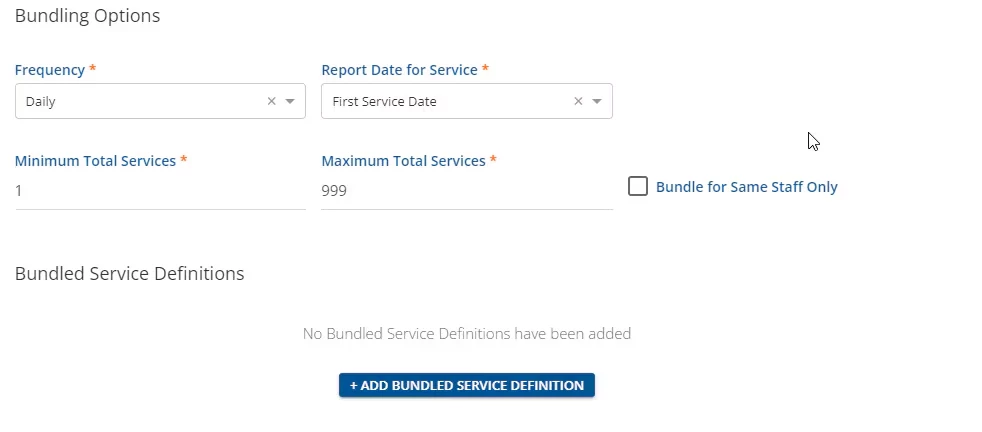
Frequency - Select bundling Frequency from the drop-down list.
- Daily - On the same day. This is the default value.
- Weekly - Within a single seven-day period from Sunday - Saturday.
- Monthly - Within the same month.
- Annually - Within the same year.
Report Date for Service - This field determines how the service date is reported in 837P/I, CMS1500, and/or UB04 bills. The available options are First Service Date and Last Service Date. The First Service Date option is the default selection.
Minimum Total Services - Enter the Minimum Total Services. This is the minimum number of services within the period or Frequency to qualify for bundled billing.
NOTE: Minimum Total Services must be less than Maximum Total Services. If the bundle's Minimum Total Services amount is not met, the bundle is not created, and the Services are either held or released based on the setting selected in the
Maximum Total Services - Enter the Maximum Total Services. This is the maximum number of services within the period or Frequency that qualify for bundling.
- Maximum Total Services must be greater than Minimum Total Services.
- When the maximum is met in processing, any remaining services remain available and can be picked up in a subsequent bundle, if applicable.
Bundle for Same Staff Only - Select the checkbox when the Payer (Pay Source Plan) requires that the same Staff member provide all Services in the bundle.
Bundled Service Definitions
Click the + Add Bundled Service Definition button to add Service Definitions to the bundle.

Service Definition - Select a Service Definition from the dropdown field to apply to the bundle configuration.
NOTE: Only non-bundled, non-direct fee service definitions are available for selection.
Billing Priority - This numeric value determines which service is the primary service and receives the charge in the bundle.
- A service value of “1” represents the highest priority.
- The highest priority service is the one that shows up in reporting while the service is being processed at the payer.
- If the service with billing priority "1" is not present in the bundle, processing will take the next highest priority service and make that the primary service.
Min. Services - Enter the minimum number of associated services required to bundle. This is a required field and can be zero.
- The service can be counted to meet the minimum total services but it is not required to successfully bundle.
Max. Services - Enter the maximum number of associated services required to bundle. This is a required field and can be zero.
- Once the maximum number of services is reached, the remaining services matching that service definition will either Release For Individual Processing, be Put On Hold, or will Mark as Done (Not Billable), depending on the option selected within the When Service Does Not Bundle field.
When Service Does Not Bundle - Select from the dropdown field to determine what happens when an individual service for a defined bundled service definition (for any bundling frequency) does not bundle.
- There are three options available: Release for Individual Processing, Put on Hold, or Mark as Done (Not Billable).
- Put On Hold - Does not include the service in the bundle. Once the Created Charges job is finalized, the service(s) will be returned to "Ready" status to be included with a future job.
- Release For Individual Processing - Allows a service to create a charge as if it were not bundled.
- Mark as Done (Not Billable) - If there are services outside of the minimum and maximum number of services in the bundle, the remaining services will be marked as Done and no further attempts at processing them will occur.
- This must be defined for each service definition in the bundle.
To add another bundled service definition, click the + Add Bundled Service Definition button.
Click the trash icon to the right of a Service Definition to remove it.
Click the Save button at the bottom of the screen to record the configuration.