Alerts are a way of communicating a system of organizational checks and balances. For example, they may be used to notify Staff when signatures are missing, Authorizations are missing, or when a Service Event did not result in a Created Service. Triggered alerts are accessed by clicking the alerts inbox icon, a white circle with a blue bell, on the blue application information bar. Each alert has an icon indicating its severity - Notice, Warning, or Critical. When alert issues are resolved, they no longer appear in the alerts inbox. Alerts may be toggled on or off and configured to meet organizational needs.
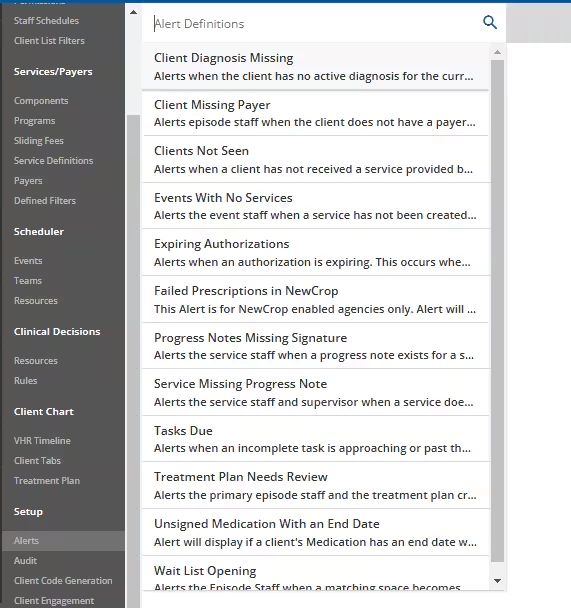
In Configuration - Setup > Alerts, the twelve core alerts available are displayed in the Alert Definitions search field.
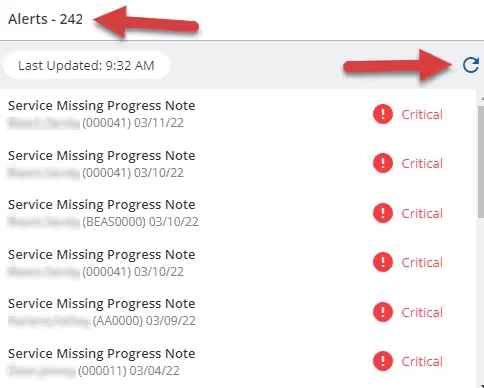
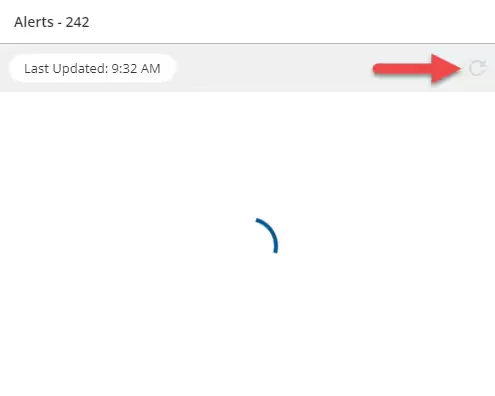
The application requests Alerts on application login. A red notification dot displays whenever the signed-in user has an Alert. If all Alerts are cleared, no notification dot appears. A count of the Alerts shows to the label's right when the Alert's screen is opened along with the Last Update time. Simply clicking on the Alerts icon (bell) updates the Alerts list if more than 10 minutes have elapsed since the last update. Use the new refresh button to fetch Alerts regardless of how much time has passed since Last Updated. The refresh button is disabled while waiting for a response from the server.
| 
|
Configure Alerts
Use the search bar or scroll through the list to select the desired alert. Each alert has:
- A toggle bar to enable or disable the alert
- A brief description of the alert
- A configurable alert Priority
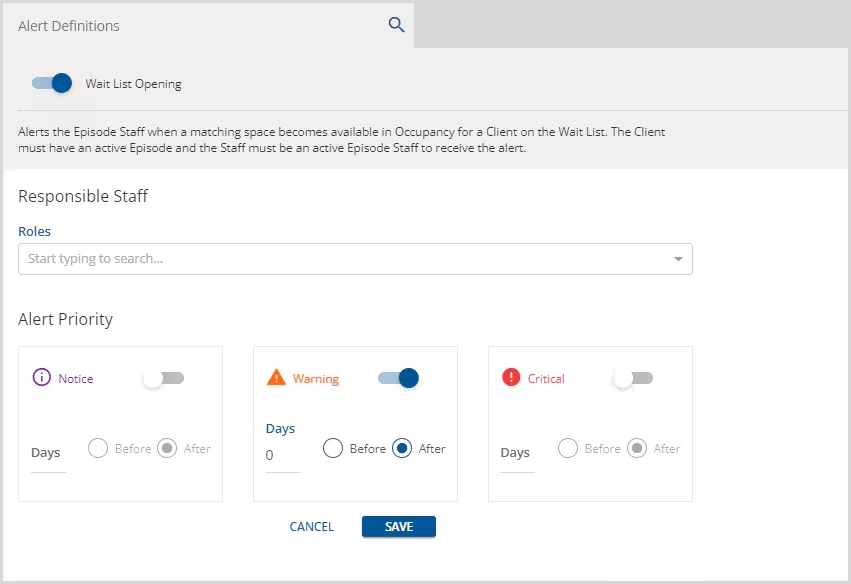
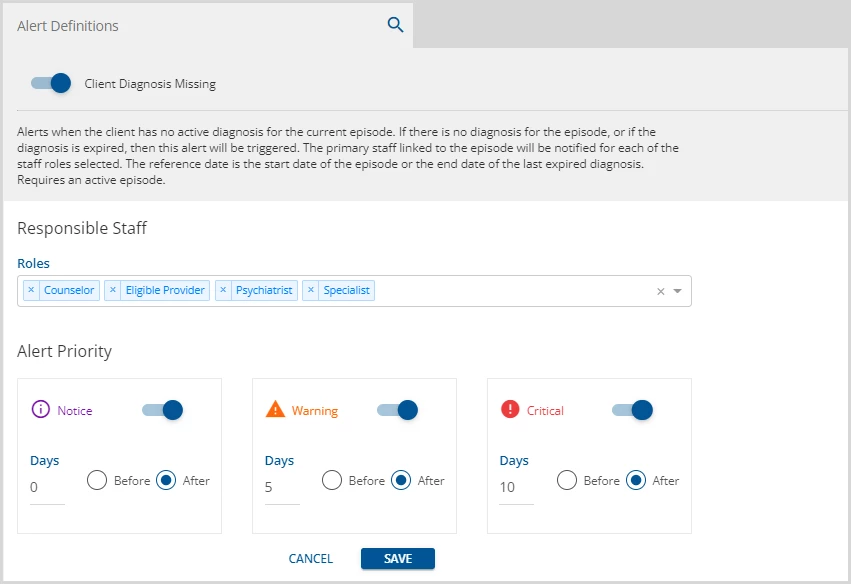
Some alerts also have a configuration required to define Responsible Staff. An example using the Client Diagnosis Missing Alert is shown below:
1. A blue toggle bar indicates the alert is active or enabled. Slide the button to the left to make the alert inactive (disabled); then click Save at the bottom. Note the change in the image below:
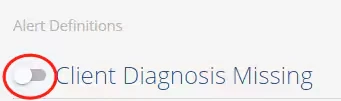
2. Each alert has a description explaining the alert and how it is triggered.
3. Responsible Staff - The alert can be configured to notify only Responsible Staff with the selected Roles.
- Select each role that applies from the dropdown listing.
- These roles are defined in Configuration - Setup > Defined Lists > Staff Roles.
- Per the alert description, the primary staff linked to the Client episode is notified.
- Other alerts do not require a primary staff, just simply an episode staff.
- If there are no Roles selection for Responsible Staff, no alerts are triggered.
4. Alert Priority - Each alert has three priorities to configure. These priorities control the icon that is associated with the alert. Any of these priorities can be turned on or off using the toggle bar.
5. Notice - The Notice priority defines the trigger for the first alert. The Alert type will determine which of these is most appropriate. For Client Diagnosis Missing, Days After makes sense as it relates to the current episode. Typically the Notice priority will be the most number of Days Before or the fewest number of Days After. Click on the Days field to add or change the number of days for this priority.
6. Warning - The Warning priority defines the trigger for the Warning level message in alerts.
7. Critical - The Critical priority defines the trigger for the Critical level message in alerts.
8. After any changes are made, the blue Save button is enabled. Click to record changes.
Core Alerts
Client Missing Payer
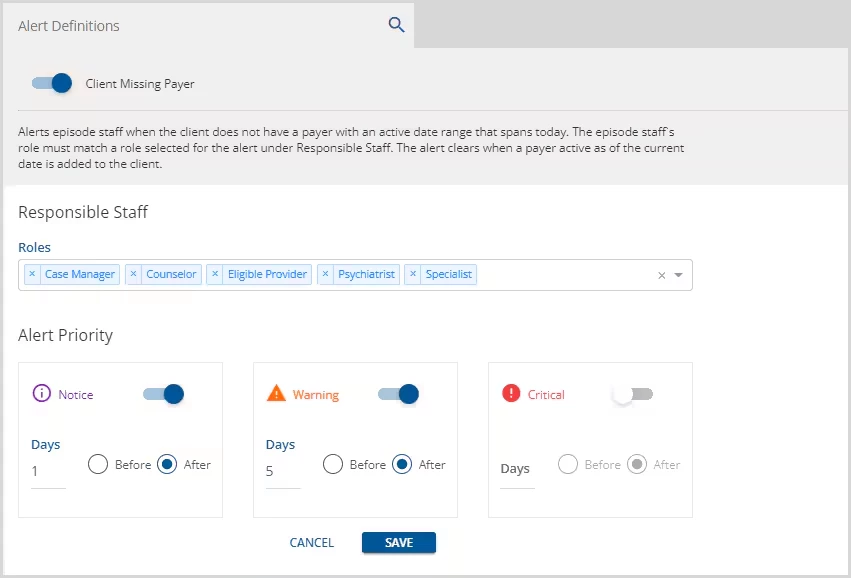
Alerts episode staff when the Client does not have a payer with an active date range that spans today. The episode staff's role must match a role selected for the alert under Responsible Staff. The alert clears when a payer, that is active as of the current date, is added to the Client.
Client Diagnosis Missing
Alerts the primary episode staff when the Client does not have a diagnosis for an active episode OR does not have an active diagnosis for an active episode. The reference date is the start date of the episode or the end date of the last expired diagnosis. The episode staff's role must match a role selected for the alert under Responsible Staff. The alert clears when a Client diagnosis is added for the active episode.
Clients Not Seen
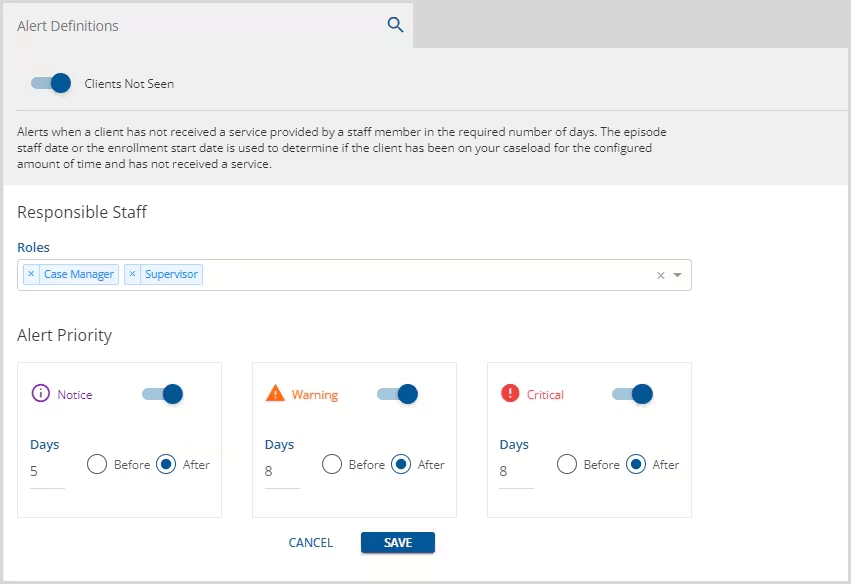
This alert is received by any Episode Staff who has a role that matches in the Responsible Staff section in Configuration - Setup > Alerts, and for any primary staff for that Client.
The episode staff date or the enrollment start date is used to determine if the Client has been on your caseload for the configured amount of time and has not received a Service. This alert clears once a service is created for the Client within the specified number of days.
Events With No Services
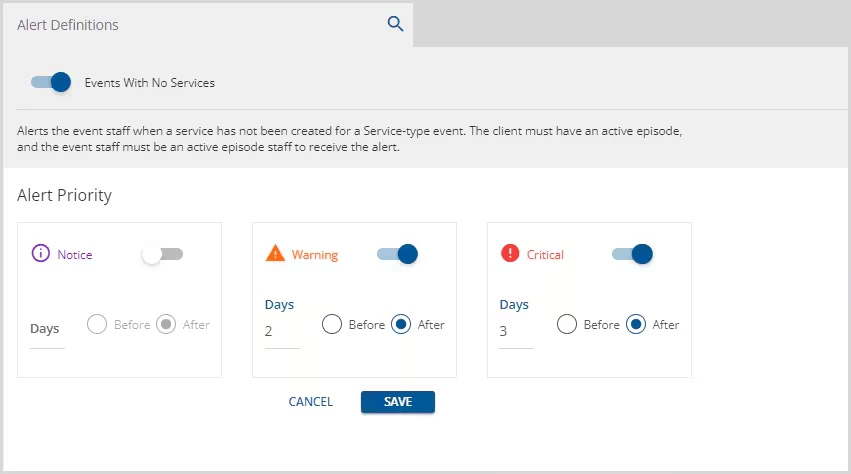
Alerts the event staff when a service has not been created for a Service-type event. The client must have an active episode, and the event staff must be an active episode staff with a role that matches a role selected for the alert under Responsible Staff to receive the alert. The alert clears once a service is created from the event, the event is deleted, or you are no longer the event staff. Event ancillary staff do not receive this alert.
Expiring Authorizations
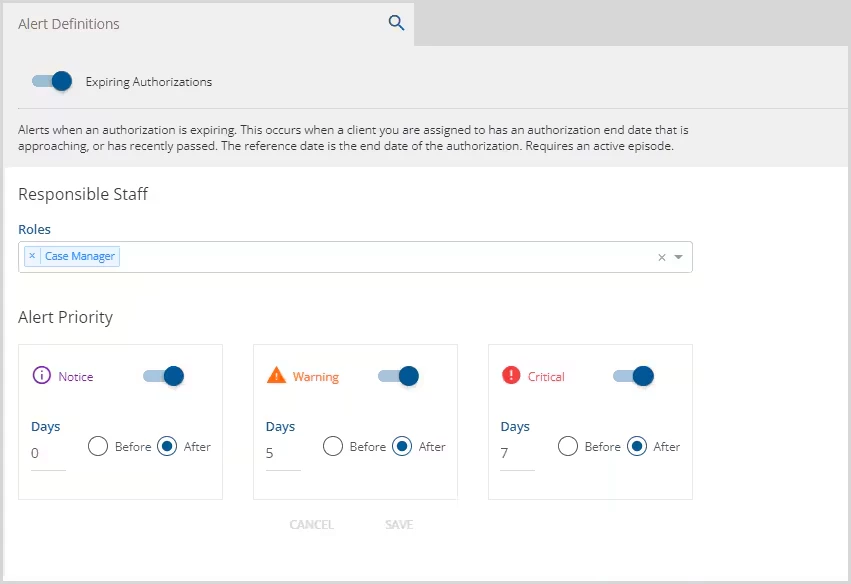
Alerts episode staff when a Client's authorization is expiring. The Client episode must be active, and the episode staff must have a role that matches a role selected for the alert under Responsible Staff to receive the alert. The alert triggers when a Client assigned to the staff has an authorization end date that is approaching or has recently passed. The alert clears when the new authorization is entered.
Progress Notes Missing Signature
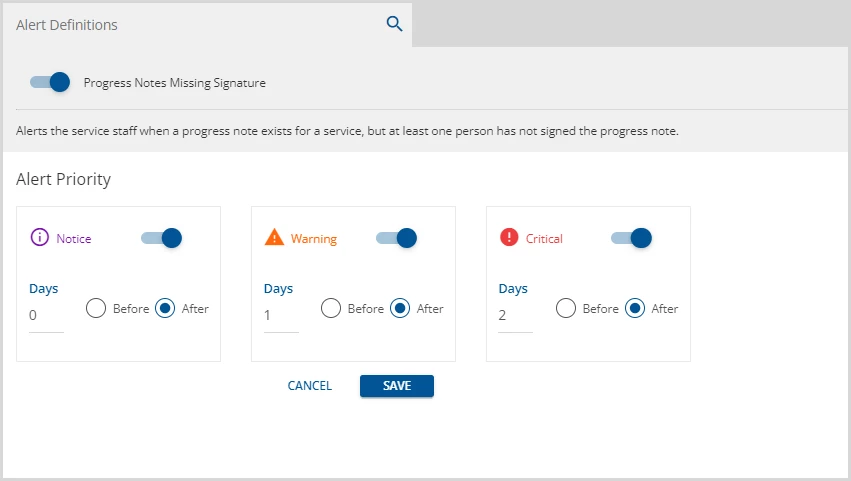
Alerts the Service Staff when a progress note exists for a Service, but at least one person has not signed the progress note. The alert clears after the progress note has at least one signature.
Service Missing Progress Note
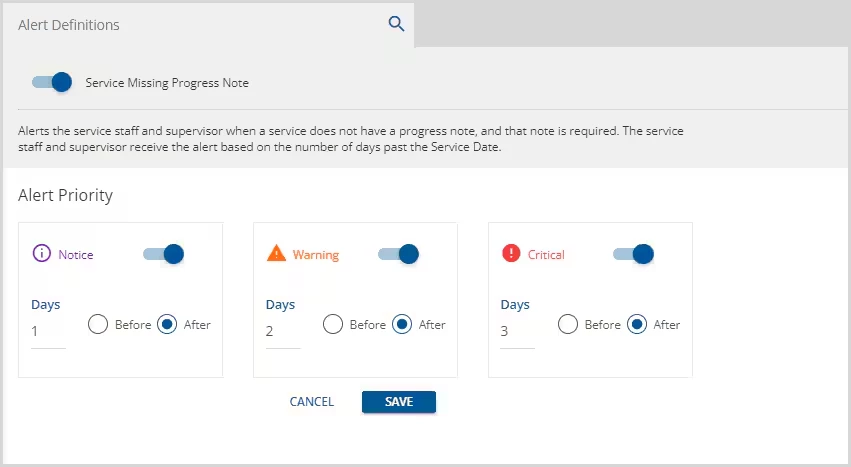
Alerts the service staff and supervisor when a service does not have a progress note, and that note is required. The Service Staff and Supervisor receive the alert based on the number of days past the Service Date. The alert clears once the progress note is completed for the service.
NOTE: This alert can be configured to trigger based on days before the service occurred, but the expected use, and example, assume a days after configuration.
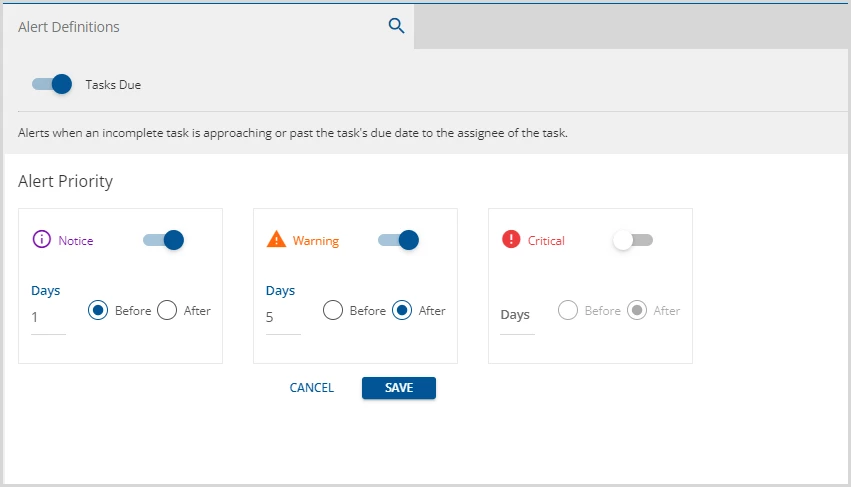
Tasks Due
Alerts the Task assignee of an incomplete task. Tasks are assigned in the Claim Details screen by clicking on the Notes & Tasks button, entering the task information, and selecting Save. The alert is triggered when an incomplete task is approaching or past the task's due date, depending on the alert's configuration. The alert clears once the task assignee marks the task complete in the Notes & Task screen in Claims Details.
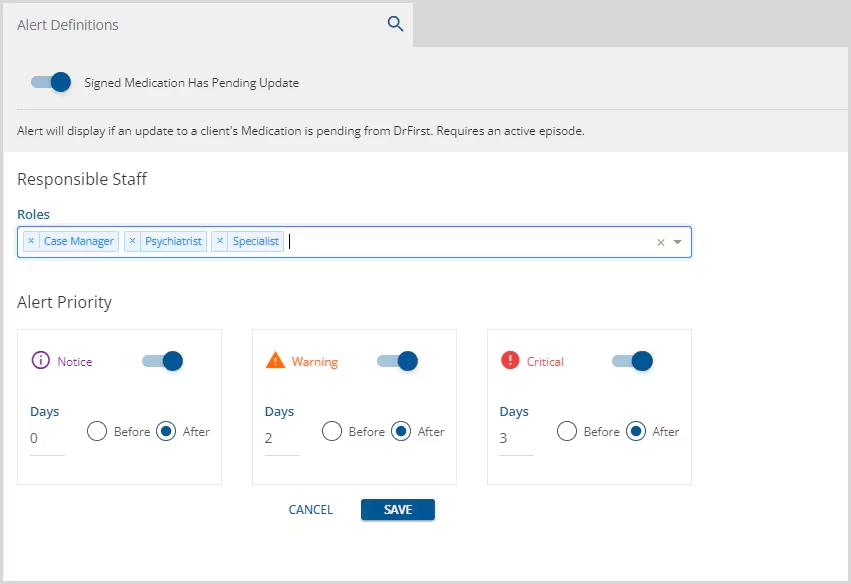
Signed Medication Has Pending Update
Alerts episode staff when an update to a Client's Medication is pending from E-Prescribing. The Client episode must be active, and the episode staff must have a role that matches a role selected for the alert under Responsible Staff to receive the alert. The episode staff must unlock the form to clear the alert.
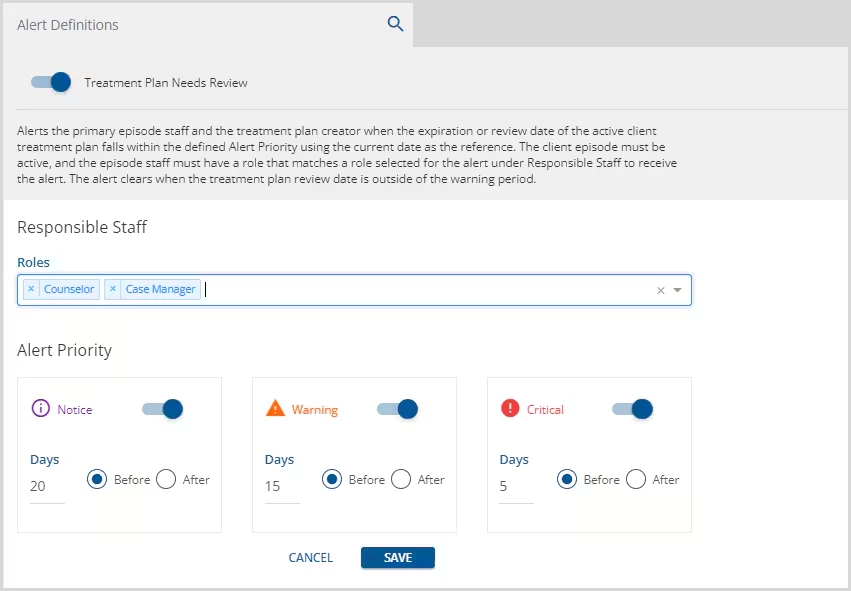
Treatment Plan Needs Review
Alerts the primary episode staff and the treatment plan creator when the expiration or review date of the active Client treatment falls within the defined Alert Priority using the current date as the reference. The Client episode must be active, and the primary episode staff must have a role that matches a role selected for the alert under Responsible Staff to receive the alert. The alert clears when the treatment plan review date is outside of the warning period.
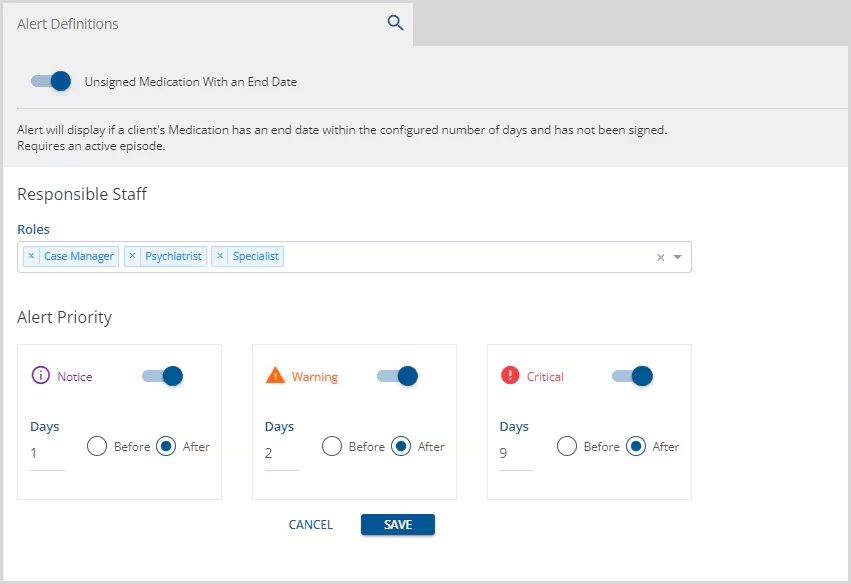
Unsigned Medication With an End Date
Alerts episode staff when a Client's medication that has not been signed has an end date within the configured number of days. The Client episode must be active, and the episode staff must have a role that matches a role selected for the alert under Responsible Staff to receive the alert. The alert clears when the medication form is signed.
Wait List Opening
Alerts episode staff when a matching space becomes available in Occupancy for a Client on the Wait List. The Client episode must be active, and the episode staff must have a role that matches a role selected for the alert under Responsible Staff to receive the alert. The alert clears once the Client is assigned to a space.
IMPORTANT: Only a single alert priority can be configured at one time because the database records the current date as the offending date when a Wait List opening alert is triggered. Once an offending date is stored, no further alerts are triggered for that space and Client combination.