


Overview
This article will describe the function of a pick list and the different types of pick lists.
Jump To Section:
Task Description
A pick list  is a function that allows you to select data from a pre-created list to populate a field in the system. Pick lists are common in clinical documents.
There are four types of pick lists that can be utilized in a clinical document:
Module-Based
- A module-based pick list looks to a selection of data from a specific module.
- Staff
- Codes
- Contact
- Diagnosis
- Module-based pick lists are pre-determined and you cannot add custom pick list selections while in the form's pick list.Â
- Here is a visual example of a module-based pick list in a Release of Information clinical document.
| Letter | Name | Description |
| A | Clinical Document | The type of clinical document being edited - Release of Information. |
| B | Pick list icon | A pick list icon opens an additional window for you to view and select from the available options for that field. |
| C | Pick list selection | Each line is a pick list selection. In this case, the pick list is module-based pick list from the Contacts module. |
Item List
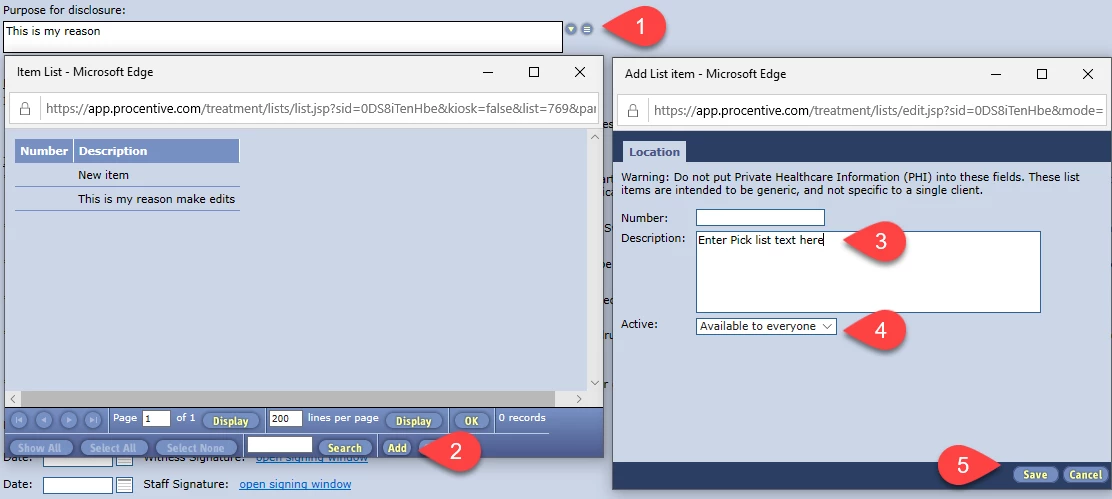
- Staff members can create a pick list selection for any field that has an item list pick list.
- Click the pick list icon.
- Click Add.
- Enter a description.
- Select an Active option - "Available to everyone" or "only myself".
- Click Save.
Parent-Child
- Parent-child pick lists are designated by the Clinical Documents Development Team. This option may or may not be present based on the clinical document.
- The parent pick list needs to be populated before you can see the selections for the child pick list.
- The child pick list selections populate based on the parent pick list chosen.
NOTE: The child pick list selections change if the parent pick list selection is changed.
- You can create both parent and child pick list selections. See the above directions for adding a pick list.
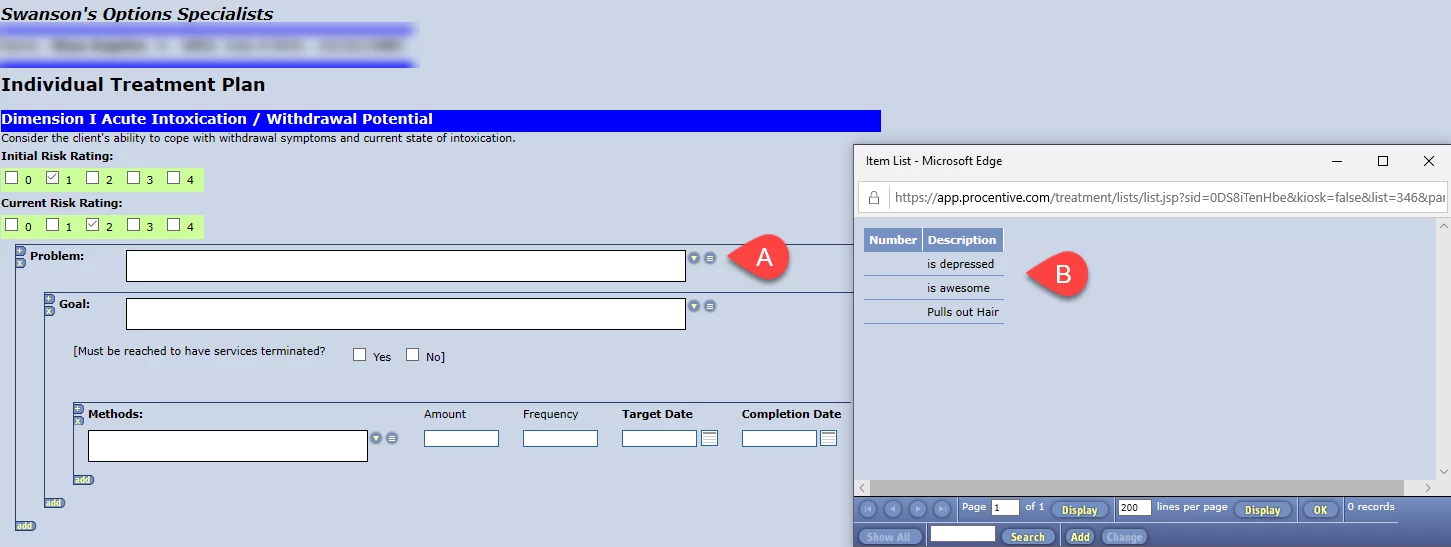
- Here is an example of a parent-child pick list set up for a treatment plan.
| Letter | Name | Description |
| A | Parent pick list icon | A pick list icon opens an additional window for you to view and select the available options for that field. |
| B | Parent pick list selections | Each line is a pick list selection. In this case, the selections were previously created by a staff member. Each represents a description of a problem. The problem field has been designated as a parent field for this treatment plan. |
| C | Child pick list icon | A pick list icon opens an additional window for you to view and select the available options for that field. These options are specific to the problem selected. |
| D | Child pick list selections | Each line is a pick list selection. In this case, the selections were previously created by a staff member. Each represents a description of a goal. |
Practice Planners
- Practice Planners are an integrated library of language that uses planners from Wiley and Sons to populate key clinical document fields in treatment planners and progress notes.
- Practice Planner datasets can be used in pick lists for problems, goals, objectives, and interventions.
- Submit a help desk ticket to customer support for more information on Practice Planners.
NOTE: There is a fee associated with Practice Planner datasets.