


The Education/Vocation tab within Clients allows users to enter complete education and employment history information for a Client.
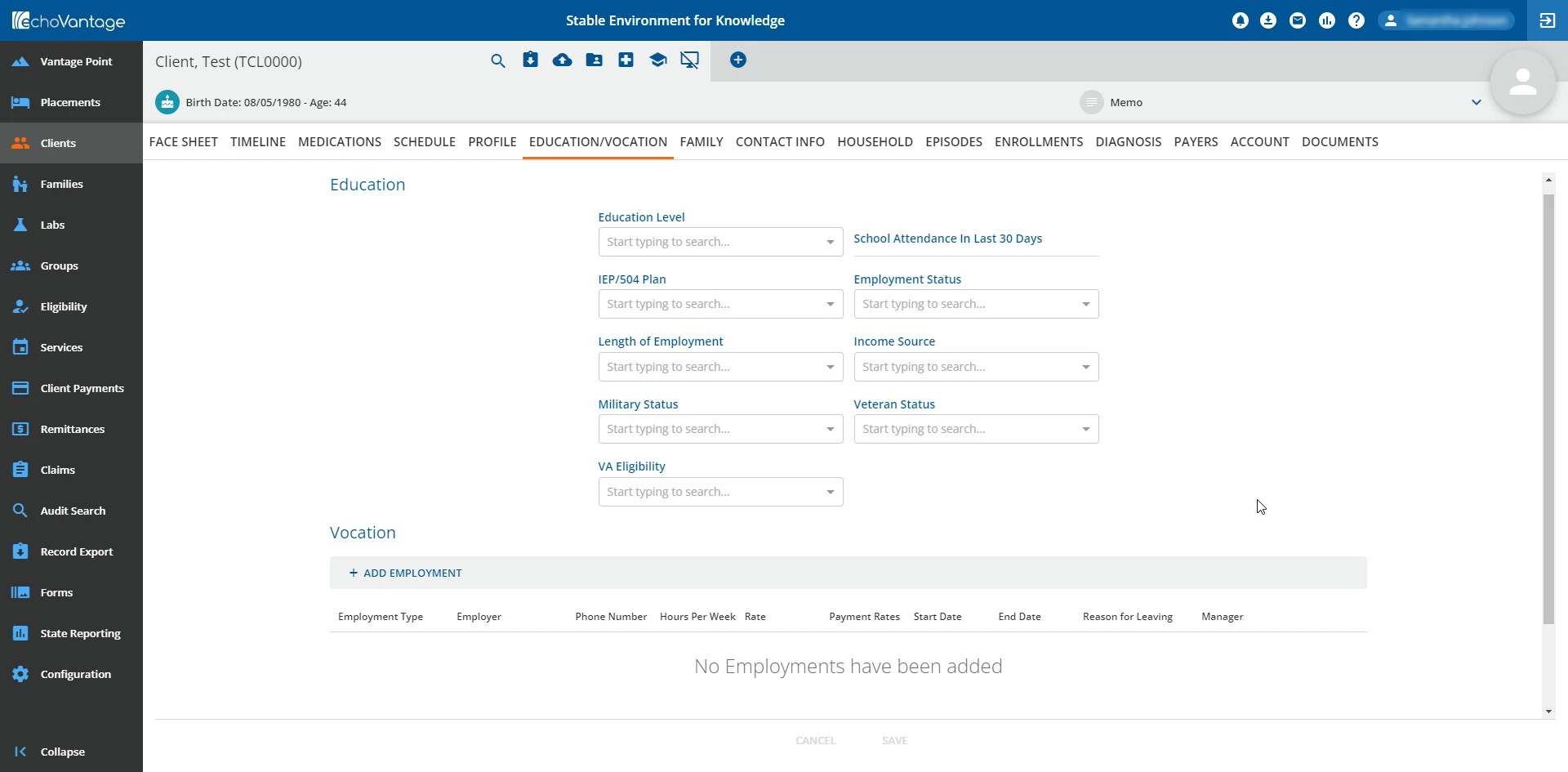
The screen is divided into two sections: Education and Vocation.
Education Section
The following fields are available:
- Education Level
- Available entries must be previously configured within the Education Level defined list within Configuration - Setup > Defined Lists.
- School Attendance in Last 30 Days
- IEP/504 Plan
- Available entries must be previously configured within the IEP/504 Plan Status defined list within Configuration - Setup > Defined Lists.
- Employment Status
- Available entries must be previously configured within the Employment Status defined list within Configuration - Setup > Defined Lists.
- Length of Employment
- Available entries must be previously configured within the Length of Employment defined list within Configuration - Setup > Defined Lists.
- Income Source
- Available entries must be previously configured within the Income Sources defined list within Configuration - Setup > Defined Lists.
- Military Status
- Available entries must be previously configured within the Military Status defined list within Configuration - Setup > Defined Lists.
- Veteran Status
- Available entries must be previously configured within the Veteran Status defined list within Configuration - Setup > Defined Lists.
- VA Eligibility
- Available entries must be previously configured within the VA Status defined list within Configuration - Setup > Defined Lists.
To enter a new education history record:
- Select data for any of the fields available.
- Click the blue Save button at the bottom of the screen.
Vocation Section
The Employment grid will display previous information entered within Add Employment window.
When no employment history is present, the text "No Employments have been added" will be present within the list view.
To add an instance of employment:
- Click the blue + Add Employment text button below the Vocation header.
- The Add Employment window will display.
-
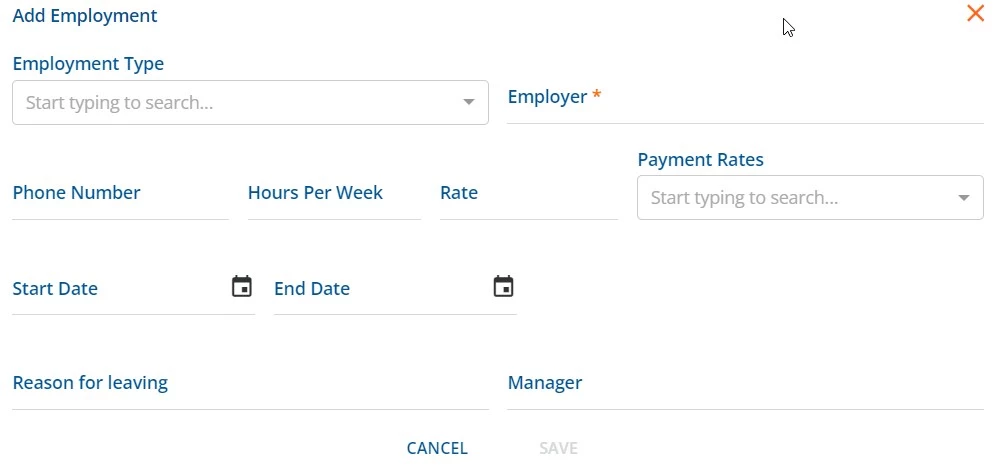
- Users can enter or select data within the following fields:
- Employment Type
- Available entries must be previously configured within the Employment Types defined list within Configuration - Setup > Defined Lists.
- Employer
-
NOTE: The Employer field is required.
-
- Phone Number
- Hours Per Week
- Rate
- Payment Rates
- Available entries must be previously configured within the Employment Payment Rates defined list within Configuration - Setup > Defined Lists
- Start Date
- End Date
- Reason for leaving
- Manager
- Employment Type
- Once data has been entered within the form, click the blue Save button to confirm.
- The completed entry will display within the Employment grid list view.
-
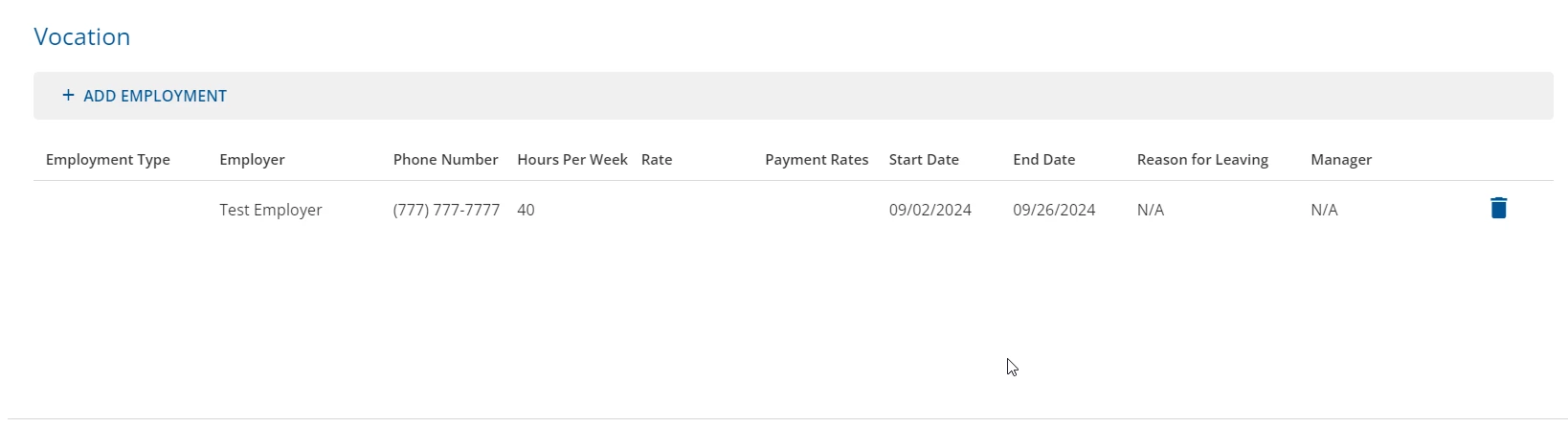
- To delete a previously entered employment history line item, click the blue trash icon.
- The Delete Employment window will display.
-
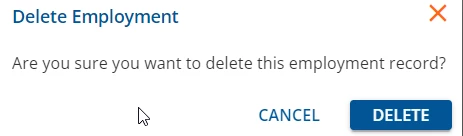
- Click the blue Delete button to confirm the action.