


Modifiers can be added and edited on invoices in the client ledger and on invoices that are part of a batch. When an invoice is created, modifiers entered in at the service type level will automatically pull into the code modifier fields on the invoice. From here, you can update or add additional modifiers to line items on the invoice as needed. You're able to edit modifiers on an invoice before the claim is put into Awaiting Submission status, or when the claim status is Rejected/Denied or Paid/Processed. You can also edit modifiers on invoices for externally submitted claims when the claim status is Rejected/Denied or Paid/Processed.
NOTE: Making changes to modifiers on invoices does not affect the default modifier settings for any service types. Learn More: Add Non-CPT Code Service Types
Modifiers that are added at the invoice level are reflected in other areas of the application that show modifiers, including The Claims Activity Report, Superbills, CMS forms, EDI files, and the CPT column on the claims page. The automation features under claim submission will also take into account any modifiers made at the invoice level. If you set a condition to exclude certain modifiers, this will apply to invoices with modifiers made at the invoice level. Changes to modifiers at the invoice level are also recorded on the Activity Log.
Add & Edit Modifiers on an Invoice
Add and edit modifiers on invoices using the fields in the Claim Modifier column. Click inside the Code Modifier fields to remove or make changes to default modifiers that pulled in when you selected a service type, or to add additional modifiers. You can have up to four modifiers for each line item on the invoice.
NOTE: For invoices that contain aggregated invoice line items, if the claim is in a status where the modifiers are allowed to be edited, then the main service line item will be editable only. If any changes are made to modifiers here and saved, the modifier changes will then be automatically applied to the other aggregated invoice line items.
- Open an existing invoice or create a new invoice.
- If there is a default modifier for a service type, it will populate in the Code Modifiers Column.
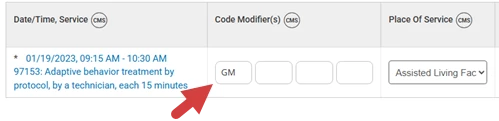
- If there is a default modifier for a service type, it will populate in the Code Modifiers Column.
- Click inside the Code Modifier field to delete or edit a modifier, or add a new modifier.
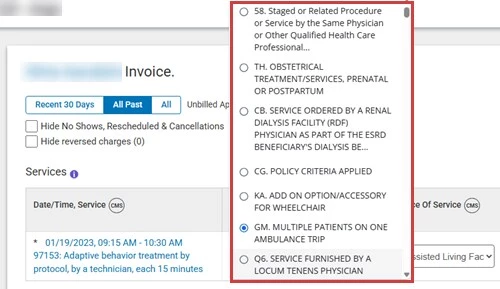
- Click inside the Code Modifier field to select from a list of options.
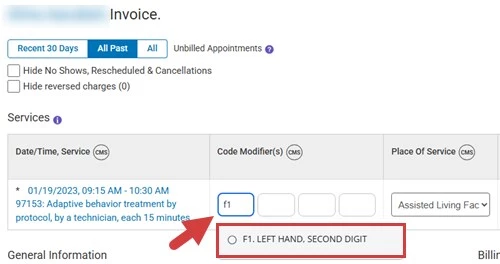
- Enter a modifier in the field to narrow down selection options.
- Click the Save button.