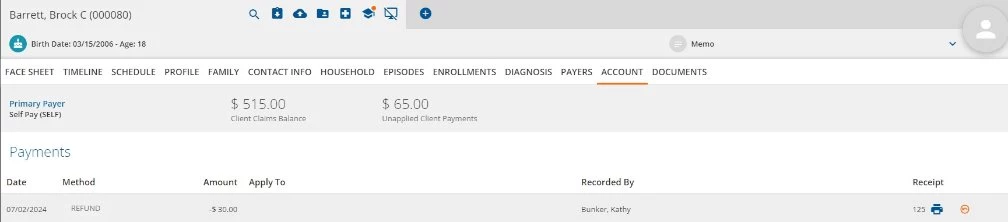
If a Client Payment needs to be refunded to the Client, users are able to refund existing payments and reverse charges in the [Client] > Account tab.
- Click on the Client Payment line item to open the Edit Payment modal.
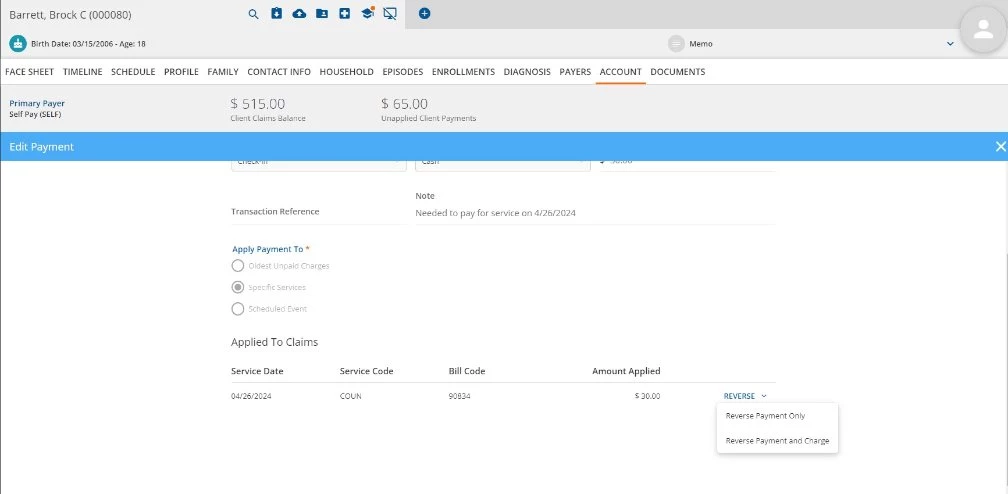
- Scroll to the Applied to Claims section and locate the selected payment.
- Click the blue Reverse button.
- There are two available options: Reverse Payment Only and Reverse Payment and Charge.
- To reverse the payment and remove the charge, click Reverse Payment and Charge.
- There are two available options: Reverse Payment Only and Reverse Payment and Charge.
- The Confirm Reversal window will open.
-
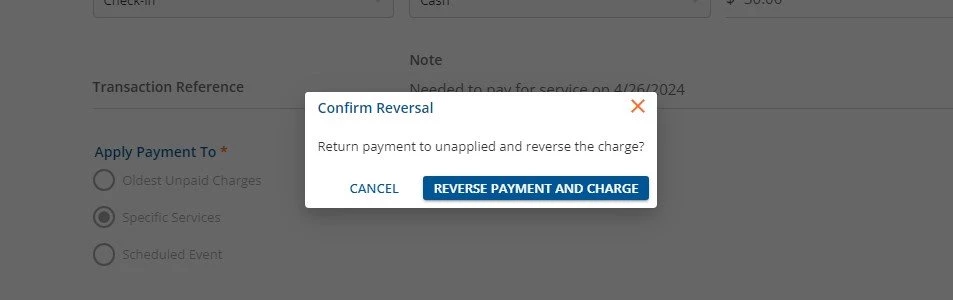
- Click the blue Reverse Payment and Charge button to confirm the reversal.
The payment will return to Unapplied Payments and reprocess automatically.
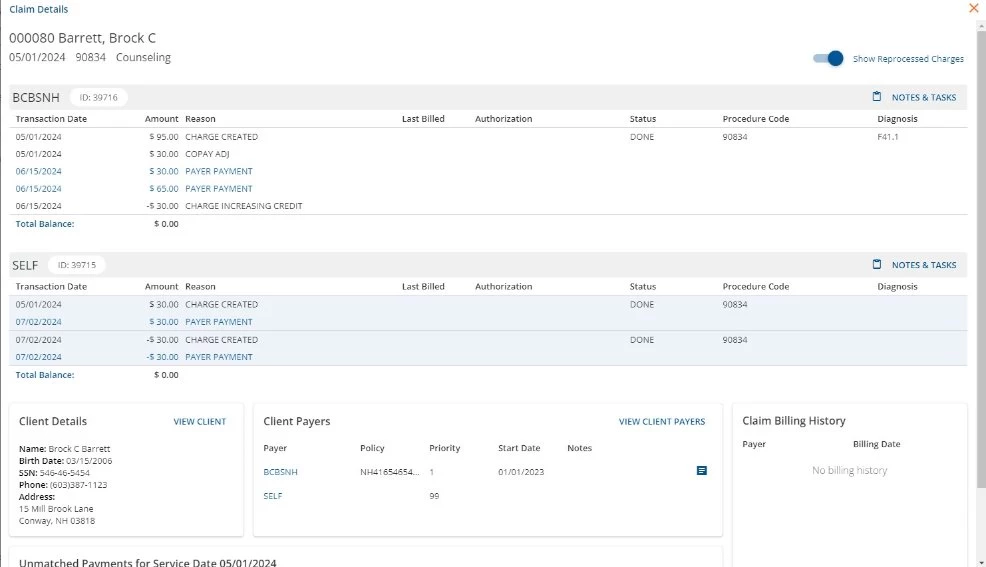
Click the payment line item to open the Claim Details window.
An example claim is shown below. The Payer Payment has been reprocessed and the charge was reversed.
- Click the blue ellipsis icon and click the orange left arrow icon to Refund Payment.
-

- The New Refund modal will open.
- Select an option from the Reason dropdown field. (These options are configured in Configuration - Setup > Defined Lists > Client Payment Refund Reasons.)
-
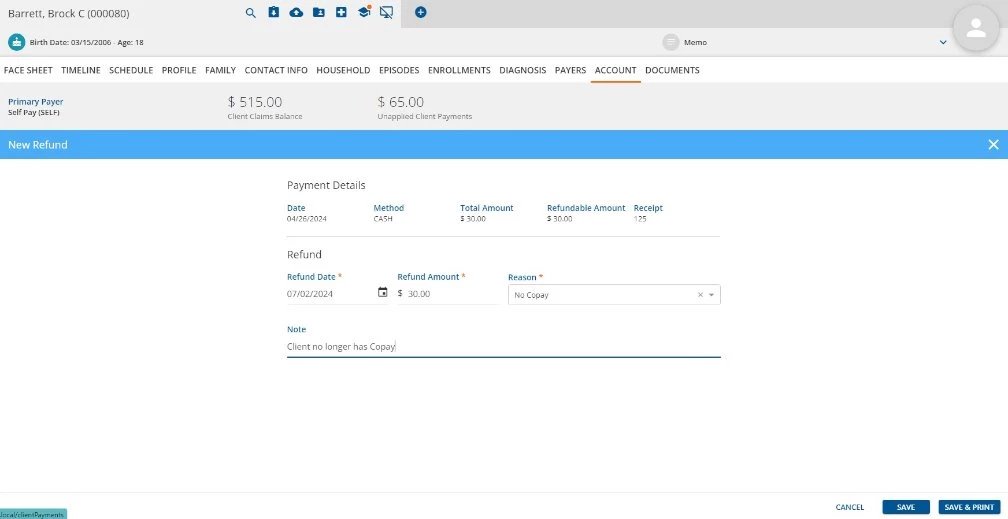
- Click the blue Save button to process the refund. Click the blue Save & Print button to process the refund and generate a print version.
- The orange Refunded icon will be present to the right of the payment line when processed successfully.