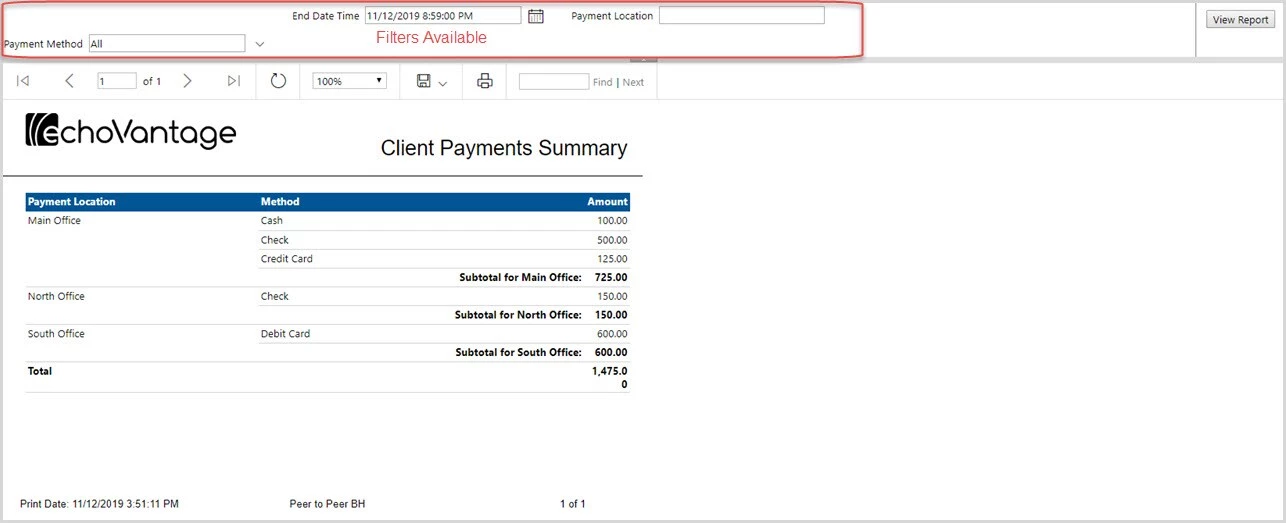
This screen is where users reconcile and process Client Payments. Filters are available to refine the list of results displayed and the Client Summary Report is available for viewing and printing.
Select Client Payments from the main menu.
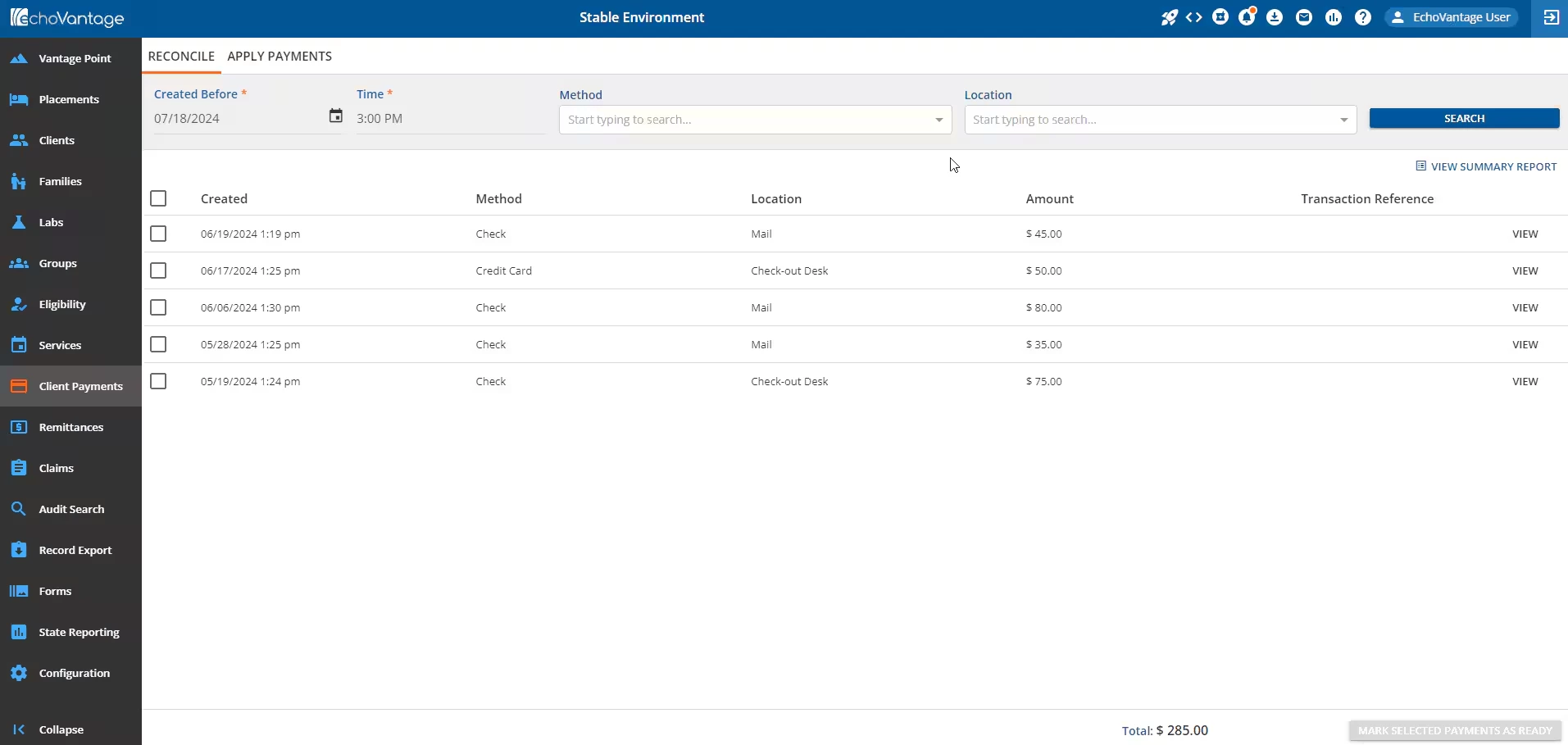
Created Before and Time - These are the only required fields to display payments in the list view.
Method - Payments may be filtered based on the method or type of payment.
Location - Payments may be filtered based on the agency-defined Location list populated in Configuration - Setup > Defined Lists > Payment Locations.
Search button - Click on the Search button to load payments into the list based on the required entries combined with either, both, or none of the optional filters.
Checkboxes - The checkboxes on the Client Payments screen may be selected and deselected to mark payments as Ready. When the Client Payment process is completed in a future release, Payments marked as Ready will be picked up by the GL posting process and cleared from the Clients Payment screen. Payments may be reconciled and marked as Ready. See Reconcile Payments for more information.
View - Each row has a View link that takes the user to the Client Access tab where that row was originally generated. This provides additional information like who recorded the payment and receipt details may be viewed in case there are questions regarding the payment.
View Summary Report - The View Summary Report link may be selected to produce and view a Client Payments report that is grouped in location. Totals for each payment method within the location are displayed, the Subtotal for each location is displayed, and finally, the Grand Total is displayed. Payment Location and Payment Method Filters are available to refine the information contained within the report.
The example below includes payments entered before 3:59 PM on November 12th for all Payment Locations and Methods.