


Before you can finalize an instance of a claim, it must be attached to at least one remit and be balanced. When it's balanced, a Green Square icon will appear to the right of the claim within a remit. For a claim to be balanced:
- Each line of the adjudication must be balanced, meaning the sum of the payment and adjustments must equal the Charges Submitted. When a line is balanced, the Balanced indicator will appear at the top of that line.
- The sum of Charges Submitted across all of the remits must equal the total charges on the claim.
- The sum of the payments and adjustments across all of the remits must equal the total charges on the claim.
If a claim isn't balanced, a Red Square icon will appear to the right of the claim within a remit.
Jump to Section:
Identify the Problem
Before you can balance a claim, you need to identify what's causing it to be out of balance. Use the remittances printout to view all of the claim's adjudications:
- Open the claim that is out of balance.
- Click the Adjudications tab.

- In the lower left, click the Print Remittances button.
With this information, you can compare what you were paid with the adjudications you received. For example:
- If the payer sent a denial and a corrected payment but did not send a reversal for the denial, you need to reverse the denial.
- If the payer sent an incorrect payment followed by a corrected payment but did not send a reversal for the incorrect payment, you need to reach out to the payer to inquire when they will provide a takeback adjudication from the original payment.
- If the payer sent two partial payments and you are keeping both, you need to combine them by creating a Combined Payment remittance.
- A claim could be out of balance due to the charge on the claim being a different amount than the charge on the adjudication.
- The billing code is changed on a daily note and the corrected claim was not submitted to the payer.
- The billing code Fee Per Unit was updated after the claim was sent to the payer and the claim was refreshed to show a different amount vs what was originally submitted to the payer.
Reverse an Adjudication
When you reverse an adjudication, Fusion adds a negative adjudication for the claim that's equivalent to an existing positive adjudication. This will zero out the total amount for the two adjudications, allowing you to keep the history of earlier payments that have been corrected by the payer.
- Open the claim that's out of balance, and click the Adjudications tab.
NOTE: You can also reverse adjudications from a remit rather than having to start on the claim form.
- To the right of the adjudication, click the Reverse icon.
- Click the remit that you want to link the reversal to.
NOTE: If you don't see the remit you need, adjust the filters in the upper right.
- To confirm that you want to link the reversal to the selected remit, click the Link Reversal button.
Combine Partial Payments
You may need to combine two payments that the payer sent if you're keeping both of the paid amounts.
Step 1: Add a $0.00 Remit
- Go to Billing → Remittances → Received.
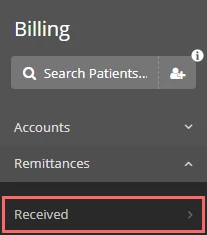
- In the lower-left, click the + Remittance button.
- Fill in the following information about the remit.
Payer The payer who sent the remit. You can either select a payer or type in a custom name. Date The date of the remit's payment. Amount The total amount the payer paid in the remit. Type Indicates whether the remit was paid by check or EFT. Number The payment's reference number, such as a check number. Billing Provider The name of the billing provider listed on the remit. Identifier Type Indicates whether the remit refers to the billing provider with an NPI or Tax ID. Provider NPI/TIN The NPI or TIN is listed on the remit for the billing provider. - Click the Save Remittance button.
Step 2: Reverse and Combine the Payment
- Open the $0.00 remit you just added.
- Click on +Claim and link the claim to this remit.
- On the combined remit claim tab, click on the claim you just added.
- The Edit adjudication screen will show.
- Enter the information to represent the total of both payments. (Each line should show balance.)
- Click Save Adjudication.
- While on the combined remit claim tab, click the View Claim icon to the right of the claim to view the claim.
- Reverse both of the partial payments into the new Combined remit.
NOTE: If you aren't sure what the overall amounts for the adjustments should be, you may need to contact the payer.
- Refresh the claim located in the upper right corner of your screen so that it updates box 29 total payer paid amount on the claim form.
- Finalize the claim to the Next claim secondary or patient billing account.