


An Administrator can edit a user profile after creation if needed. Update an email address, change the user security group, or deactivate a user.
Jump to Section:
Start from the Administration tab.
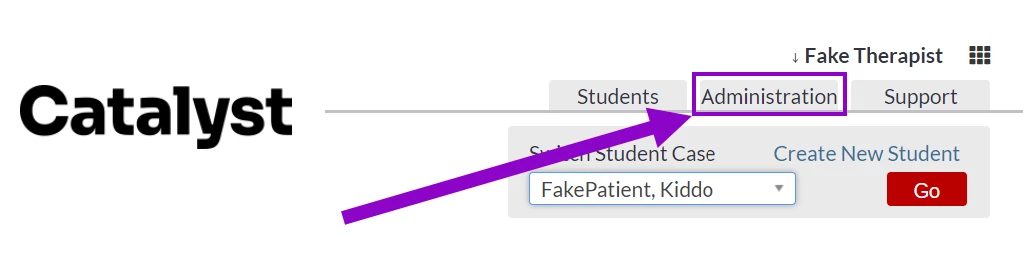
Access Users from the Administration Menu in the Administration Section.
Search for User
Users are sorted by last name. Click the appropriate letter to jump to the correct section.
There are also three available filters for users. The default view is Active users.
To switch to a different filter, click All to see all users regardless of status, or Inactive to view users that have been deactivated.
[#top]
Edit Users
- Once the desired user has been located, click on their last name.
- In Edit User modal, edit information as appropriate.
- Click Save when finished.
[#top]
Deactivate Users
Locate appropriate user and click Deactivate.
User is automatically moved to the Inactive list.
[#top]
Reactivate Users
- Click Inactive link to locate all deactivated users.
- Locate appropriate user and click Activate.
- User is automatically moved back to the Active list.
NOTE: A Security Group will need to be readded to the User.
- Go to Users.
- Select User's Last Name.
- Assign Security Group.
- Click Save when finished.
[#top]