PERMISSIONS: You must be an Administrator to add, edit, and delete Patient Cases.
Admins control how patient cases are set up for the clinic and what patient cases are available to therapists. Once a patient case is created, it is available for schedulers to select when scheduling an appointment, and for therapists to add to a patient chart. You can also choose to make a patient case available for Appointment Requests.
Admins will usually set up a Patient Case for each service type their clinic is using. Additionally, admins may create multiple Patient Cases for the same service type, allowing therapists to separate goals and documentation for different types of therapy. Admins can also create Shared Patient Cases (Patient Cases that are associated with more than one service type), which allow therapists of different service types to share the same goals for a patient.
NOTE: When Patient Cases was released, Fusion automatically created default Patient Cases for each service type that your clinic was using at the time of the release. Existing patients also had their therapy data converted into Patient Cases for those service types.
IMPORTANT: Use care and intention when creating Patient Cases for your clinic. Because each Patient Case will have separate daily notes, evaluations, goals and reminders after it is assigned to a patient, making too many patient cases available for your clinic may be overwhelming and create extra work for therapists. It's not necessary to create a separate Patient Case for every individual aspect of therapy that your clinic provides.
Jump to Section:
Create or Edit a Patient Case
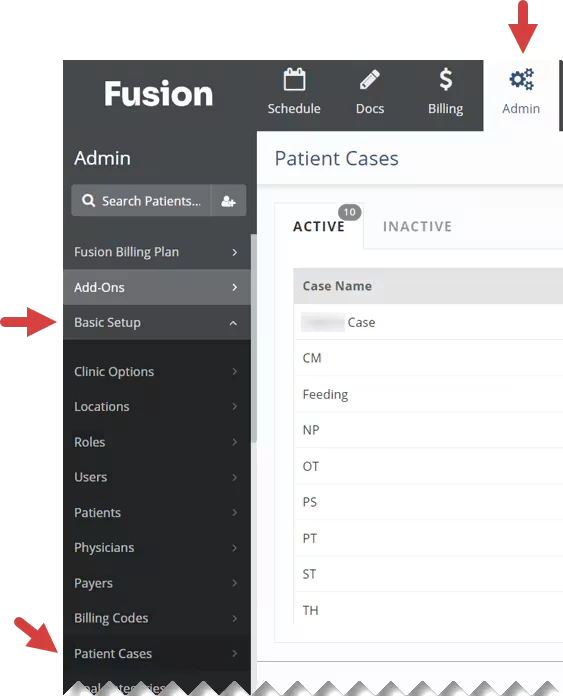
- Click the Admin tab at the top of the screen.
- Click Basic Setup in the menu on the left.
- Click Patient Cases.
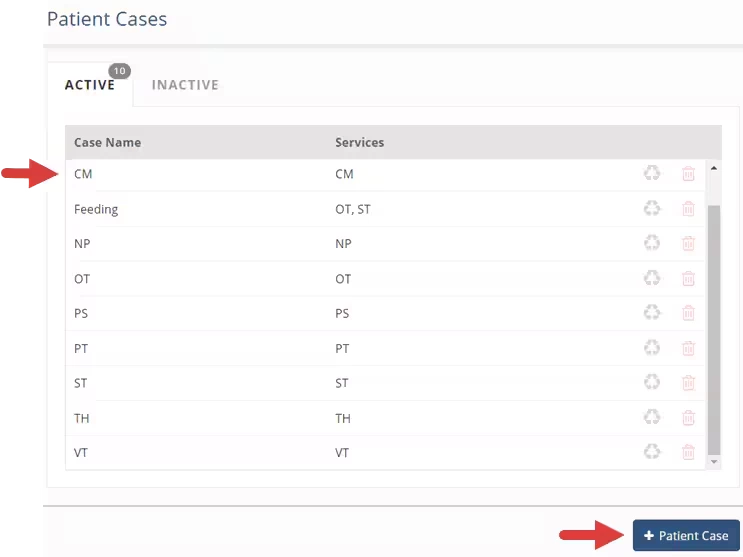
- Click the + Patient Case button in the lower right to add a new case, or click the name of an existing Patient Case to edit that case.
NOTE: If you edit an existing case (For example, if you change the Case Name or Services) this will update the case for all the patients it's associated with.
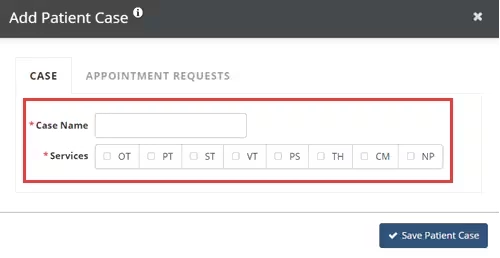
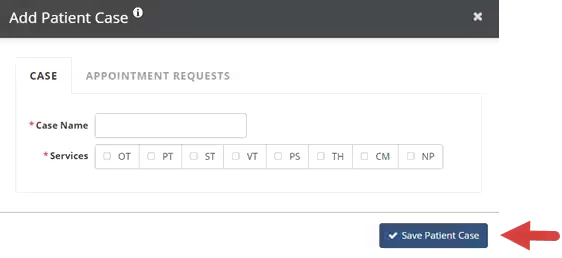
- Enter a Case Name.
- Use the checkboxes to select Services for the Patient Case.
NOTE: You can select one or more services. Therapists will have access to Patient Cases that are associated with their service type.
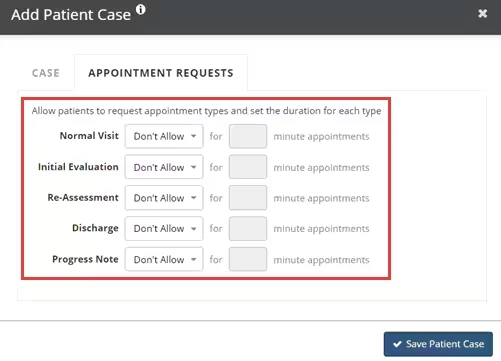
- Click the Appointment Requests tab. If your clinic is using using Appointment Requests, you can choose to allow patients who are assigned this case to request appointments via the patient portal. If your clinic is not using Appointment Requests, you can skip this step.
- Indicate which Appointment Types are available for appointment requests. Select Allow next to the Appointment Types that will be available to patients making appointment requests.
- Enter a Duration for each Appointment Type that will be available for an appointment request.
NOTE: Setting the appointment type and duration determines the timeframe and scheduling options patients see when they are requesting an appointment. Schedulers are able to make adjustments to the appointment type, duration, and other appointment details before approving an appointment request.
- Click the Save Patient Case button.
Delete a Patient Case
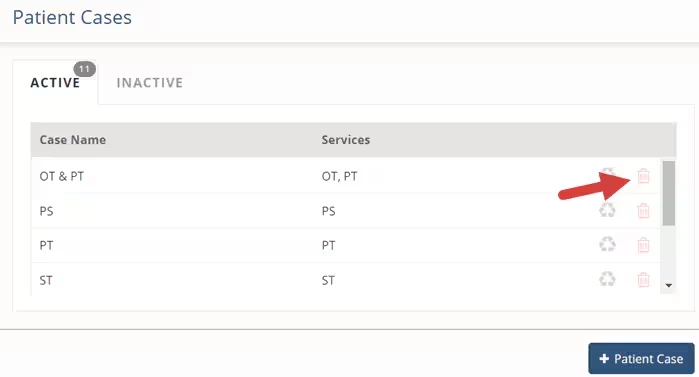
- Click the Delete icon.
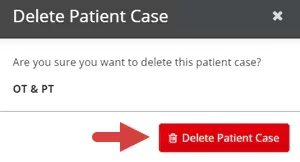
- Click the Delete Patient Case button.